
Wolt Drive & Sync
Complete integration for Wolt Drive & Sync. Easily connect your store with seamless and robust syncing.
- 5.0.0Version
- 6PHP files

01
What it does
Written for WooCommerce, without third-party ballast: the same behaviour, fewer queries.
Upgrade your WooCommerce experience with our native Wolt Drive & Sync integration. Enjoy high performance with zero database bloat and native HPOS support. Start managing your store efficiently.
Capabilities
- High Performance Order Storage (HPOS) Ready
- Action Scheduler Asynchronous Syncing
- Full API capabilities & Dashboard reporting
02 — What runs in the background
What the source code actually registers, read from the plugin itself.
- HPOSCompatible with WooCommerce High-Performance Order Storage
- REST APIEndpoints: wc/v3
- Form safetyEvery submitted form is nonce-checked
- PermissionsEach action checks the user's capabilities (5 checks)
Real screen
The Wolt settings
Credentials, a test or live environment switch, and catalogue mappings.
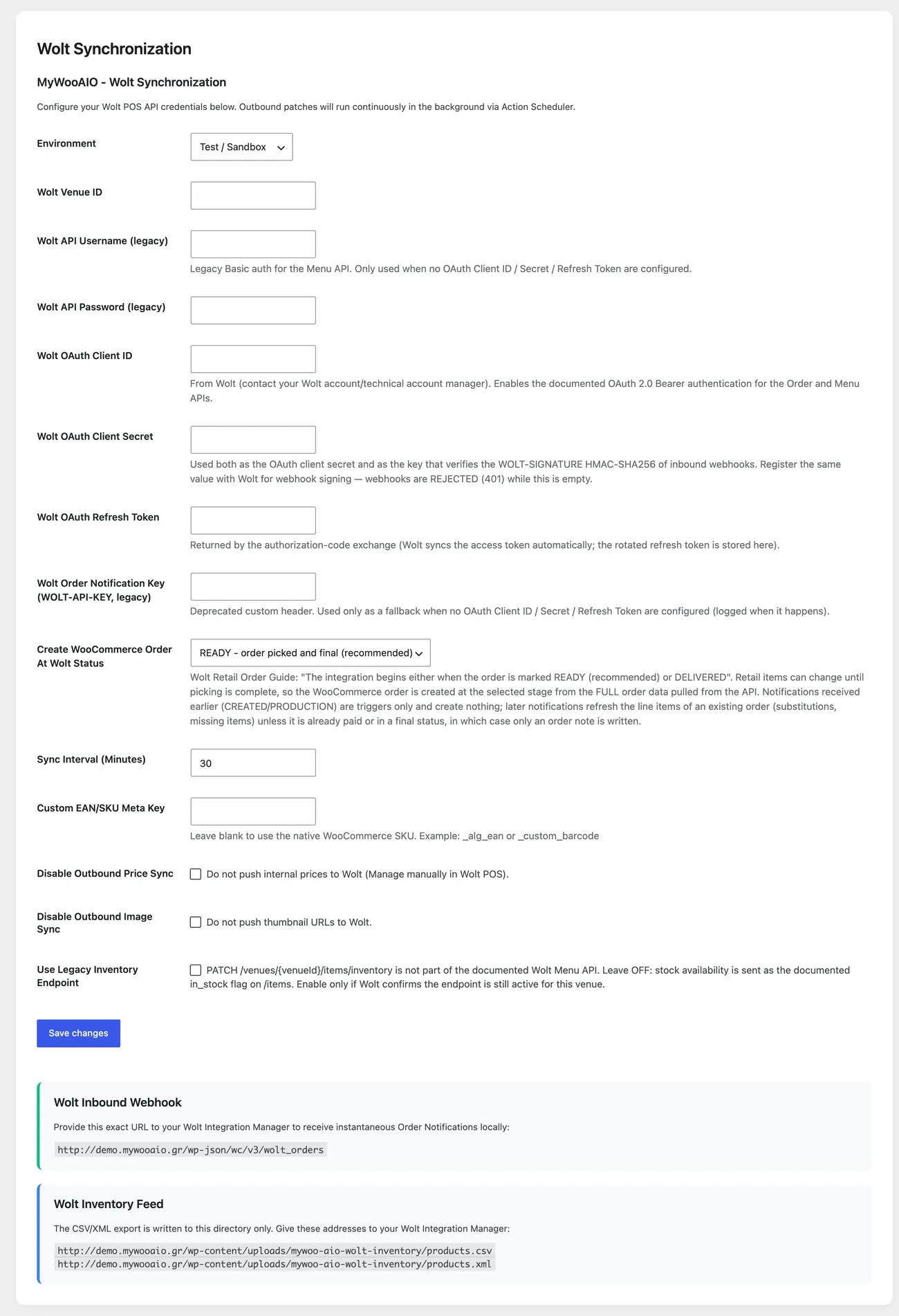
- TestingThe plugin ships a “Test / Sandbox” switch, so the connection is set up before orders arrive
04 — For developers
Every filter and action the plugin fires, with the file and line where it lives.
Filters — 1
- wc_wolt_sync_settings
Stored settings
14 settings, kept in your own shop database. You manage them from the settings screens and you never edit them by hand.
Setup guide
Wolt reaches customers who never visit your site, but every order has to pass through the shop with correct stock. The plugin listens to Wolt notifications, pulls the orders into WooCommerce and returns stock when an order is cancelled. It is aimed at supermarkets, pharmacies and warehouses that mainly serve orders from apps.
- 1
Get the keys from the Wolt partner panel
You need the service key, the merchant number, the shop number in the app and the secret the notifications are signed with. The shop number identifies which location sells, which is why on an account with many locations you must get the right one and not the first you find. If the keys were ever shared in an email or a chat, request new ones before entering them on the settings page.
- 2
Enter the keys and enable the integration
On the plugin settings page enter the four values in their fields and enable the integration. Leave the switch on only after all the keys are in, because an enabled integration without keys fills the log with errors that hide the real ones. Next to the keys also set what happens to a product that is out of stock, whether it is sent as zero or hidden from the app.
- 3
Open the notification address without obstacles
The address Wolt sends orders to receives requests from outside, so they have to pass without authentication, without a security plugin and without hidden caching. Open it from a mobile network and not from your own network, because the office firewall may allow something the internet blocks. If the shop has a bot protection system, add an exclusion for this address.
- 4
Upload the catalogue in batches, not all at once
The first catalogue upload on a shop with thousands of SKUs takes time, so run it in batches and after the first one check that the products appeared on Wolt with the correct price and stock. Pay attention to variants, because every size and colour must be sent separately with its own stock. If the first batch went through correctly, let the rest run in the background and do not close the browser while it runs.
- 5
Test an order and a cancellation
Place an order from the app with your own details and see whether it came into the admin with the products, the taxes and the delivery address. Then cancel it from the app and check that stock returned to the products, because a cancellation that does not return stock hides products from sale without anyone noticing. Finally try an order with a product that has only one unit, to see what happens if you accept a second one at the same moment.
- 6
Check the commissions and the end of the day
Set in the plugin how the Wolt commission is recorded, so at the end of the month the amount you received agrees with the orders in the admin. Also open the report that shows what synced and what failed, and set a rule to look at it once a week, because the products that fail usually belong to a whole category and not to a single product.
Common mistakes
- A notification address blocked by a security plugin or a server setting. Orders do not arrive and there is no error message.
- Variants sent as one product. The same stock is shared across several options and the product sells twice.
- Keys from another sales location. Orders arrive with wrong prices or do not arrive at all.
- A catalogue without a price or without stock uploaded to Wolt. Listings are rejected silently and the shop does not appear in the app search.
More plugins in this category
Questions
About Wolt Drive & Sync
Will my thousands of products reach Wolt right away?
The first upload runs as background jobs. So you are not at risk of 504 Gateway timeouts even with 20,000+ items.
What happens when a Wolt order is cancelled?
The Manager listens for the 'order.cancelled' event the second it fires and puts your native WooCommerce stock back immediately, so the product is available in your shop again.
Licence
Included in the MyWooAIO suite, along with every other plugin, for a single payment.
- Instant 1-click install
- Updates included for life
- Support in Greek
Installation
- Install the MyWooAIO Manager
- Paste your licence key
- One click: the plugin installs and activates itself
- Updates arrive on their own, from the dashboard
Add Wolt Drive & Sync to your shop
One payment, updates included, no subscription.