
Courier Center API
Complete integration for Courier Center API. Easily connect your store with seamless and robust syncing.
- 5.0.0Version
- 3PHP files

01
What it does
Written for WooCommerce, without third-party ballast: the same behaviour, fewer queries.
Upgrade your WooCommerce experience with our native Courier Center API integration. Enjoy high performance with zero database bloat and native HPOS support. Start managing your store efficiently.
Capabilities
- High Performance Order Storage (HPOS) Ready
- Action Scheduler Asynchronous Syncing
- Full API capabilities & Dashboard reporting
02 — What runs in the background
What the source code actually registers, read from the plugin itself.
- HPOSCompatible with WooCommerce High-Performance Order Storage
- Scheduled tasksUses the WordPress cron for recurring work
- Form safetyEvery submitted form is nonce-checked
- PermissionsEach action checks the user's capabilities (4 checks)
- TranslationEvery string is translatable
Real screen
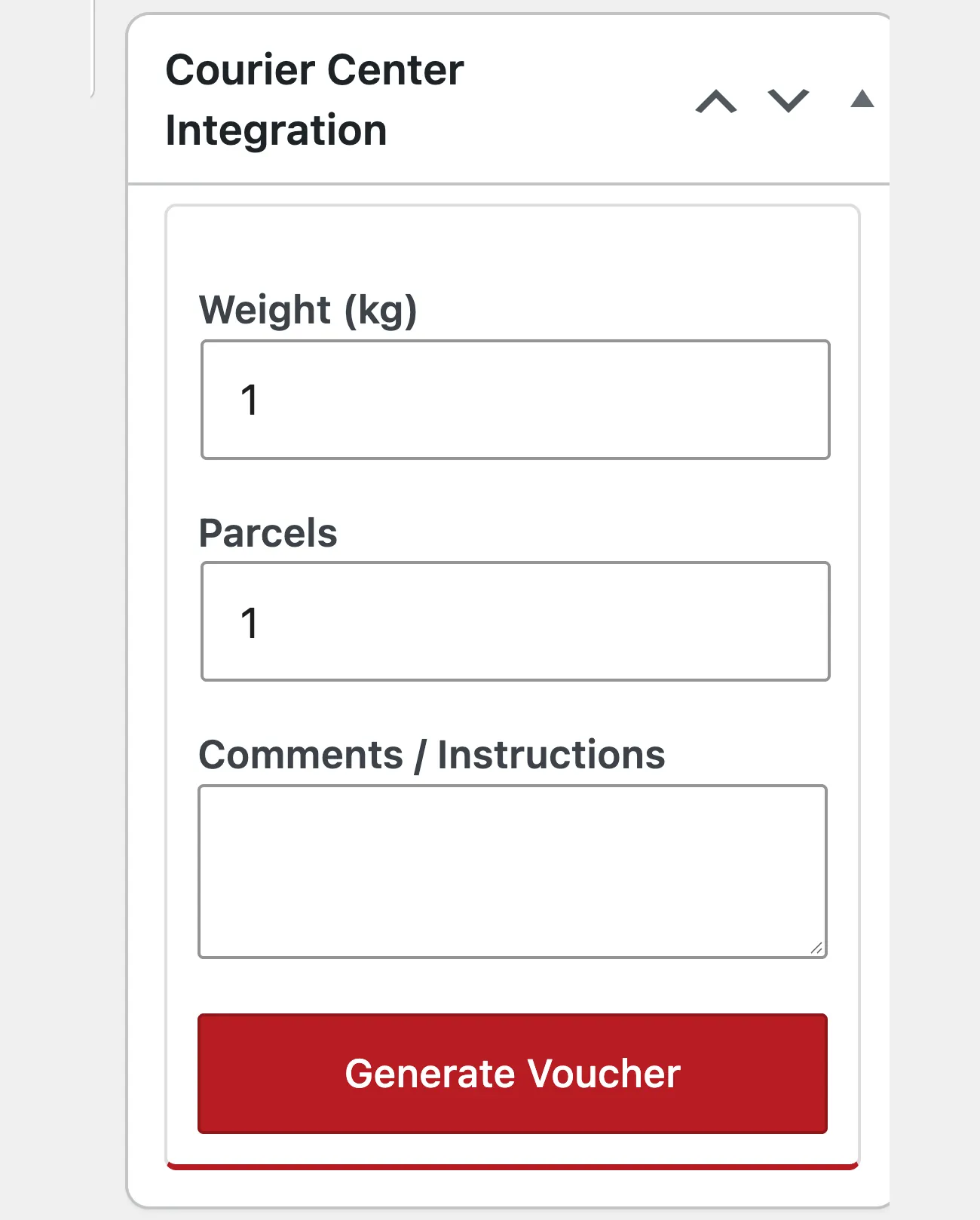
The Courier Center box
The shipment is visible and handled inside the order, with no separate page.
Setup guide
In a shop with hundreds of shipments a day, the time lost on each label is the biggest cost of the day. The plugin sends orders to the carrier API, accepts several parcels on one order and prints labels in bulk. It is for shops with high volume and an active API key.
- 1
Get the API key
The carrier gives you a key for access to its services, tied to your account and your price list. Ask for it together with instructions for the test environment, because the volume of the shop leaves no room for experiments on live orders. Also ask what the maximum weight and dimensions are per parcel, because the carrier has limits and a parcel outside them is returned and the shop pays for it.
- 2
Enter the key and set the label format
In the settings enter the key, choose the label format that matches your printer and fill in the item description, because that is what appears on the label. Enable the shipping method in the zone and make sure the charge the customer sees covers the real carrier cost. If the shop ships to islands, check those charges separately, because that is where the margin from other orders disappears.
- 3
Test an order with several parcels
Place an order with enough items to need two parcels and create the labels from the admin. Check that both parcels got their own tracking number but stayed tied to the same order, because otherwise the customer receives one and thinks something is missing. Test an order with cash on delivery as well, so you can see whether the amount the courier collects is correct.
- 4
Test cancellation and return
Open a test shipment and cancel it, to make sure the tracking number is not reused and that the order is updated correctly. Then test a return, if the shop uses them, and check whether the customer is notified and whether stock comes back. These two flows are the ones people forget to test and they cause most of the arguments afterwards. Keep a note of what the customer sees in each case, because the carrier and the shop do not always show the same thing.
- 5
Set up bulk printing and check the speed
Test bulk printing with twenty orders and measure how long it takes and whether the file comes out in one run without breaking. Check whether printing can be started from the orders list page instead of one by one, because that is where the time the shop pays for is saved. If printing gets stuck, lower the number per run and try again in an hour with little traffic.
- 6
Set a rule for failed shipments and returns
Decide who checks the shipments that were not created or that failed, and how often, because at high volume failures go unnoticed in the list. Also decide what happens when a parcel comes back: who logs it, whether stock returns and whether the customer is notified. Without that rule, the shop books and the warehouse drift apart within a few weeks.
Common mistakes
- A wrong weight on products you ship often. The charge comes out at the minimum and the difference is lost on every shipment.
- Several parcels that are not tied to the same order. The customer gets part of the purchase and asks for the rest.
- Bulk printing of hundreds of orders in one run. The server memory cannot take it and the file breaks.
- Returns that are never logged in the shop. Stock and amounts drift apart with no visible reason.
More plugins in this category
Questions
About Courier Center API
Can I send an order with more than one parcel?
Yes, multiple parcels per order are supported. You declare the boxes and the labels are issued accordingly.
Does the order update when the status changes?
Yes, the status moves onto the order on its own, for things like pending or cancelled. You do not set it yourself.
Which label format should I choose?
There is an A4 layout with four labels per page and a format for Zebra thermal printers. You pick it in the settings.
Are cash on delivery and insurance supported?
Yes, besides cash on delivery there is parcel insurance and a replacement option. You can also turn on a Viber notification.
What do I need from the courier service?
An active Courier Center API key. You also fill in the item description, which carries through to the labels.
Licence
Included in the MyWooAIO suite, along with every other plugin, for a single payment.
- Instant 1-click install
- Updates included for life
- Support in Greek
Installation
- Install the MyWooAIO Manager
- Paste your licence key
- One click: the plugin installs and activates itself
- Updates arrive on their own, from the dashboard
Add Courier Center API to your shop
One payment, updates included, no subscription.