
efood Sync
Complete integration for efood Sync. Easily connect your store with seamless and robust syncing.
- 5.0.0Version
- 6PHP files
01
What it does
Written for WooCommerce, without third-party ballast: the same behaviour, fewer queries.
Upgrade your WooCommerce experience with our native efood Sync integration. Enjoy high performance with zero database bloat and native HPOS support. Start managing your store efficiently.
Capabilities
- High Performance Order Storage (HPOS) Ready
- Action Scheduler Asynchronous Syncing
- Full API capabilities & Dashboard reporting
02 — What runs in the background
What the source code actually registers, read from the plugin itself.
- HPOSCompatible with WooCommerce High-Performance Order Storage
- REST APIEndpoints: efood/v1
- Form safetyEvery submitted form is nonce-checked
- PermissionsEach action checks the user's capabilities (2 checks)
Real screen
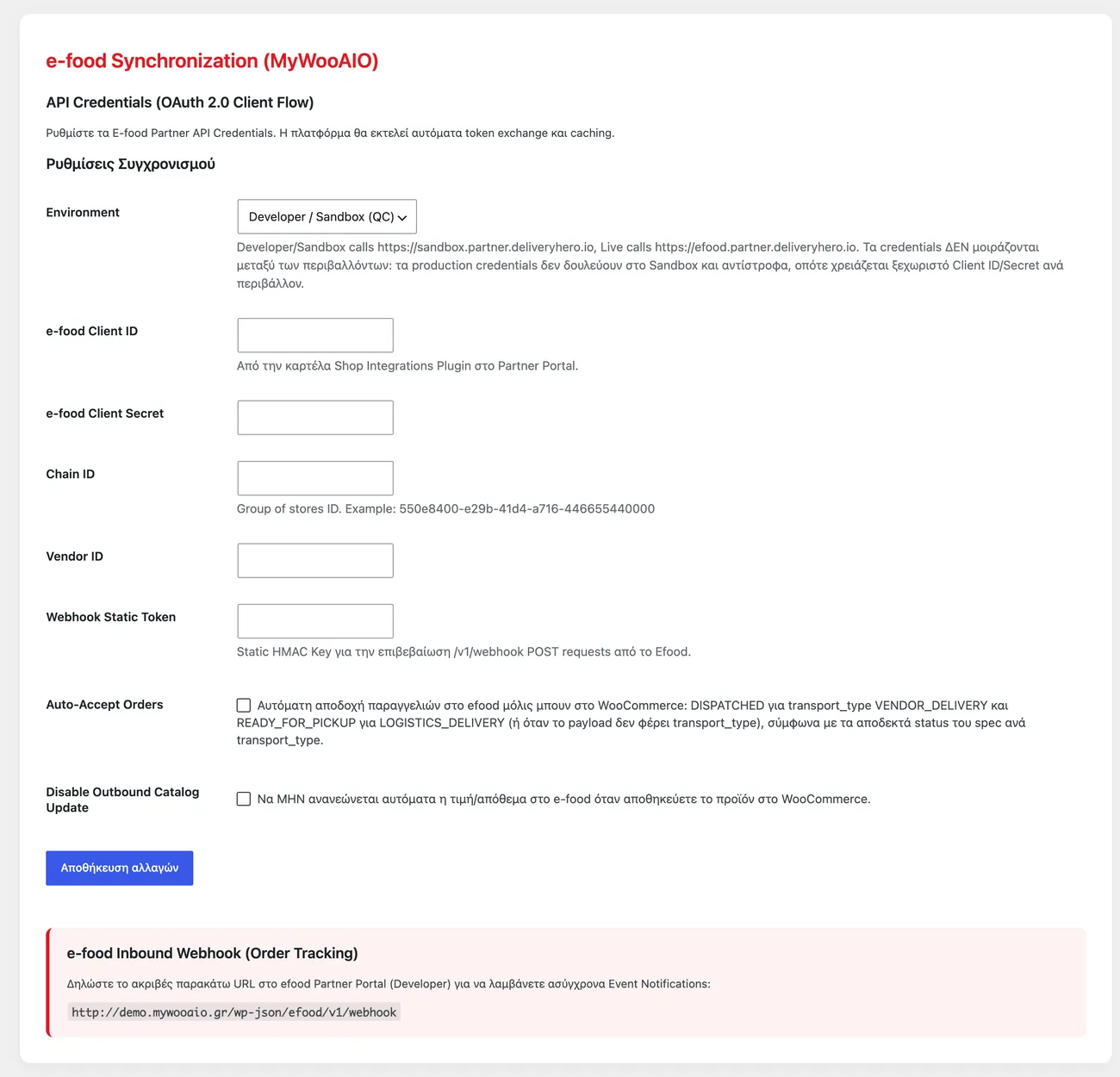
The e-food settings
The screen inside the suite menu, with the details the store shares with e-food.
04 — For developers
Every filter and action the plugin fires, with the file and line where it lives.
Filters — 1
- wc_efood_sync_settings
Stored settings
14 settings, kept in your own shop database. You manage them from the settings screens and you never edit them by hand.
Setup guide
efood brings orders from customers who never visit your site, and without an integration those orders are recorded on a second till. The plugin pulls them into WooCommerce, updates the courier when the status changes and keeps stock in sync. It is aimed at shops with a partner agreement with efood.
- 1
Get the partner keys and the notification key
In the efood partner panel you will find the application identifier and the application secret, the two values the shop uses to access the integration. Ask for the key the notifications are signed with at the same time, because without it the plugin cannot tell which notification is yours and which is a test by someone else. Also ask whether a separate test environment exists, so you do not test on a live shop.
- 2
Enter the keys in the plugin
On the plugin settings page there are fields for the identifier, the secret and the notification key. Paste them with no leading or trailing spaces, because the invisible space from a copy is the most common mistake in any service integration. If the plugin offers a test environment, leave it on until you finish all the checks and turn it off only when everything passes.
- 3
Register the notification address with efood
The plugin gives you an address that efood sends every new order to. Copy it exactly, with the secure protocol, and register it in the partner panel where the notifications are configured. If the address has one wrong letter, efood will accept it but no order will ever arrive, and the mistake is not visible in either system.
- 4
Check the product mappings and the commissions
Every efood product must map to a shop product, otherwise the order arrives with lines you do not recognise and stock is not reduced correctly. Check the mappings for the products you sell often and for variants with size or colour, because that is where the mistake grows. Also set how efood commissions are recorded, so the order total in WooCommerce agrees with what you will actually receive.
- 5
Test a real order and the status changes
Place an order from the app with your own details and wait for it to appear in the admin. Change the status to completed and see whether the courier is updated, because that update is why efood grants access to the integration. Then check that the stock of one product in the test order went down and that a sold-out product is no longer offered in the app.
- 6
Go live and set a check for pending orders
Enter the production keys, turn test mode off and make a small purchase. From then on set a rule: every morning you open the orders that did not close on their own and check them, because an order that did not come through is a customer who paid on efood and will never receive anything from the shop. Write the rule in one sentence, so it applies when you are away too.
Common mistakes
- Test keys on a production shop. Orders look normal until you check what you were actually paid.
- A notification address with the wrong protocol or behind a server restriction. Orders do not arrive and the mistake shows nowhere.
- Products without a mapping. The order arrives with lines that do not match a SKU and stock is not reduced.
- Staff working both tills without checking each other. Two people send the same order or forget it on both screens.
More plugins in this category
Questions
About efood Sync
What makes this different from other plugins that sync with efood?
Most plugins on the market simply export your WooCommerce catalogue to a CSV file for efood to read. That means the sync lags behind, and efood orders never reach WooCommerce at all. Ours is wired to the live Partner API. It brings orders straight into your dashboard and talks to efood in real time about stock changes, so the whole routine runs on its own.
Do I have to click anything to push stock to efood?
No. Whenever stock drops in WooCommerce, whether from a sale or a manual edit, the plugin updates efood in the background through Action Scheduler. Nothing is left for you to do.
Licence
Included in the MyWooAIO suite, along with every other plugin, for a single payment.
- Instant 1-click install
- Updates included for life
- Support in Greek
Installation
- Install the MyWooAIO Manager
- Paste your licence key
- One click: the plugin installs and activates itself
- Updates arrive on their own, from the dashboard
Add efood Sync to your shop
One payment, updates included, no subscription.