
Shopflix Native XML
Complete integration for Shopflix Native XML. Easily connect your store with seamless and robust syncing.
- 5.0.0Version
- 3PHP files

01
What it does
Written for WooCommerce, without third-party ballast: the same behaviour, fewer queries.
Upgrade your WooCommerce experience with our native Shopflix Native XML integration. Enjoy high performance with zero database bloat and native HPOS support. Start managing your store efficiently.
Capabilities
- High Performance Order Storage (HPOS) Ready
- Action Scheduler Asynchronous Syncing
- Full API capabilities & Dashboard reporting
02 — What runs in the background
What the source code actually registers, read from the plugin itself.
- HPOSCompatible with WooCommerce High-Performance Order Storage
- Scheduled tasksUses the WordPress cron for recurring work
- Form safetyEvery submitted form is nonce-checked
- PermissionsEach action checks the user's capabilities (3 checks)
Real screen
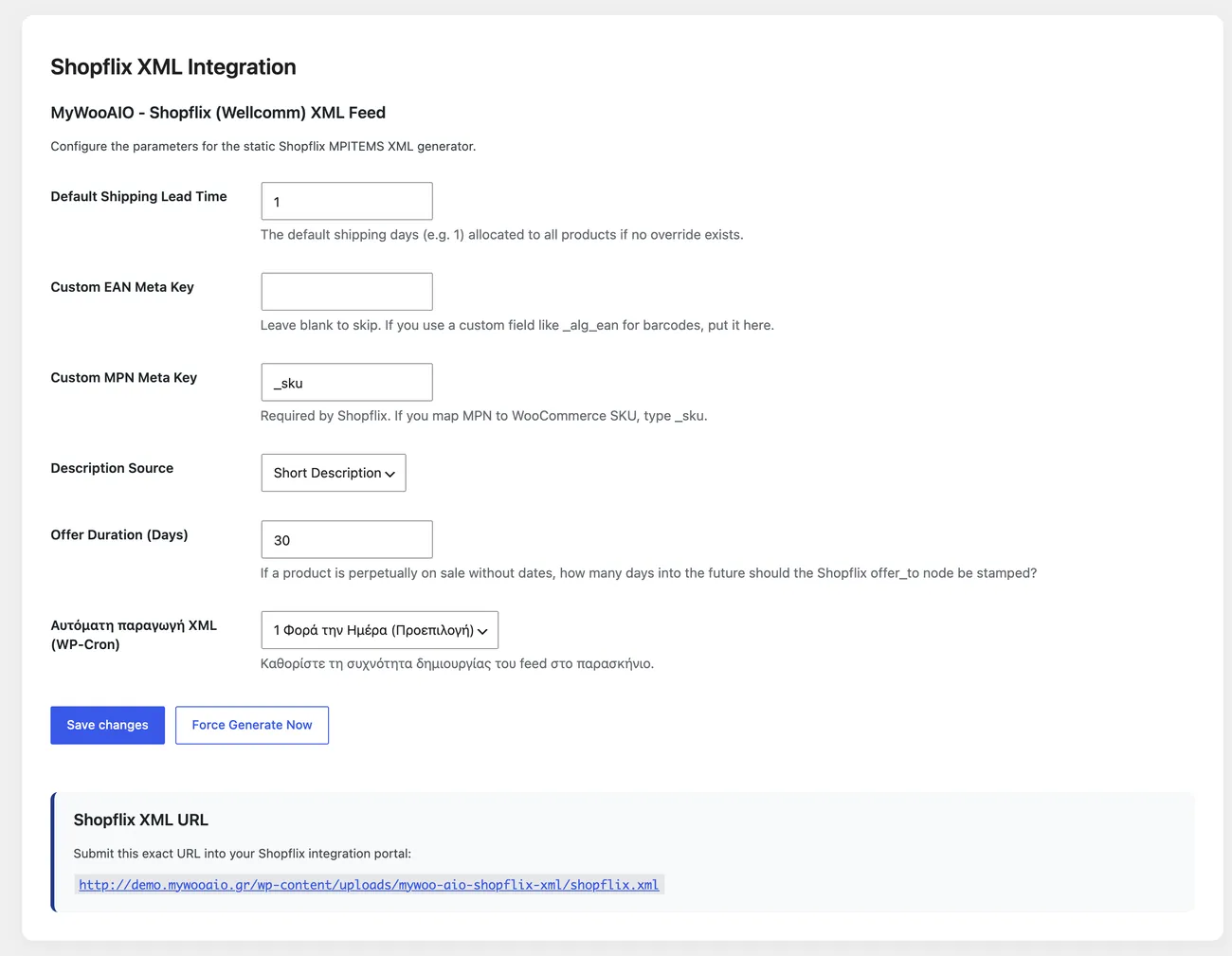
The Shopflix settings
The product feed and its categories, on the screen shown here.
04 — For developers
Every filter and action the plugin fires, with the file and line where it lives.
Filters — 2
- mywooaio_shopflix_category
- wc_shopflix_xml_settings
Stored settings
12 settings, kept in your own shop database. You manage them from the settings screens and you never edit them by hand.
Setup guide
Shopflix accepts a product feed under strict rules: every listing needs a manufacturer code and a global trade item number, otherwise the whole line is rejected. The plugin streams the feed, so it holds up on shops with tens of thousands of SKUs. It is for shops with a partner agreement on Shopflix.
- 1
Add global trade item numbers and manufacturers to your products
Shopflix asks for a global trade item number and a manufacturer code on every product, and when they are missing the product does not appear at all. Go through the products you want to promote and fill in both, using the product fields or the attributes you have set up in the shop. Keep the numbers correct down to the check digit, because a wrong digit makes the listing useless to anyone searching by code.
- 2
Submit your shop details and the responsible person
In the plugin settings you will find the details that appear on the listing, such as the shop name and the data controller. Write them exactly as you declared them in the agreement, because otherwise your listings may not be matched with the orders that come back. Declare the delivery time that applies to products you hold and to those ordered in, because a delivery time you do not keep costs you position.
- 3
Turn on feed generation
Turn on feed generation and choose how often it rebuilds, starting with once an hour if the catalogue changes often. Fill in the shop address, because the feed needs a correct link for every product, and make sure the images sit at an address that opens without a login. Then open the feed in a window with no login and make sure it shows content and is not empty.
- 4
Submit the feed address to Shopflix
Copy the address the plugin gives you and submit it in the Shopflix panel where feeds are defined. Ask for a manual fetch and wait for the result, because it is worth seeing how many products went through and how many were rejected before you leave it on automatic. If there are many rejections, the problem is almost always a missing code or a price that was not calculated correctly.
- 5
Fix the first rejections and resubmit
Open the rejection report and take the most common causes, which are usually a missing global trade item number, a price without tax or a wrong category. Fix the causes on the products and let the feed rebuild, instead of editing the feed file itself, because the file is the output and it will be overwritten on the next build. Ask for a new fetch and compare the numbers with the previous one, so you can see whether the fix worked.
- 6
Set up a check after every bulk change
Every time you add a new category or change prices in bulk, open the feed and check a sample of ten products for price, stock and code. Mistakes in a feed do not show up in the shop, they show up on Shopflix as lost positions, and you usually find them days later. Keep a note of the rejections of the month too, because that is where you can tell whether the problem is one category or a few individual products.
Common mistakes
- A missing global trade item number, or one with a wrong check digit. The listing is rejected and does not appear in search.
- A price without tax or badly calculated. The amount on Shopflix does not match the shop checkout.
- A feed with products that have no stock and no delivery time. Orders are not fulfilled within the time you promised.
- Checking the feed only while the catalogue is small. After the big upload the time limits cut the feed in half.
More plugins in this category
Questions
About Shopflix Native XML
My server crashes when it builds XML with other plugins. Is this any different?
Common tools load every product into the server RAM until the PHP memory limit is exhausted. The MyWooAIO generator runs paged database queries. It loads 100 products, prints them, frees the RAM and pulls the next batch. That is what data streaming means.
Licence
Included in the MyWooAIO suite, along with every other plugin, for a single payment.
- Instant 1-click install
- Updates included for life
- Support in Greek
Installation
- Install the MyWooAIO Manager
- Paste your licence key
- One click: the plugin installs and activates itself
- Updates arrive on their own, from the dashboard
Add Shopflix Native XML to your shop
One payment, updates included, no subscription.