
Skroutz Smart Cart
Complete integration for Skroutz Smart Cart. Easily connect your store with seamless and robust syncing.
- 5.0.0Version
- 4PHP files

01
What it does
Written for WooCommerce, without third-party ballast: the same behaviour, fewer queries.
Upgrade your WooCommerce experience with our native Skroutz Smart Cart integration. Enjoy high performance with zero database bloat and native HPOS support. Start managing your store efficiently.
Capabilities
- High Performance Order Storage (HPOS) Ready
- Action Scheduler Asynchronous Syncing
- Full API capabilities & Dashboard reporting
02 — What runs in the background
What the source code actually registers, read from the plugin itself.
- HPOSCompatible with WooCommerce High-Performance Order Storage
- REST APIEndpoints: wc/v3
- Form safetyEvery submitted form is nonce-checked
- PermissionsEach action checks the user's capabilities (2 checks)
- TranslationEvery string is translatable
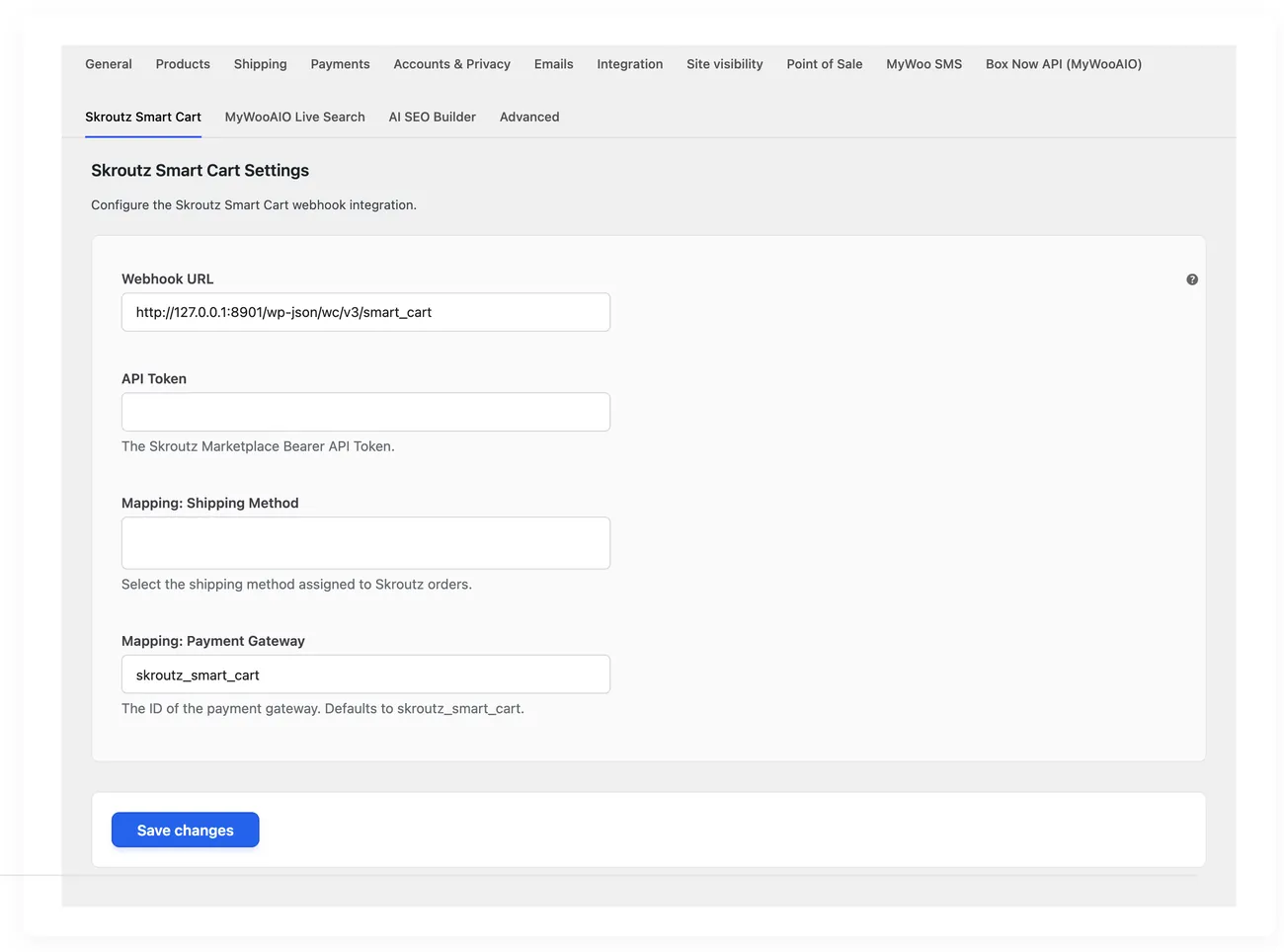
Real screen
The Smart Cart settings
When the price comparison appears inside the cart, and on what terms.
Setup guide
When a customer buys through Skroutz, the shop has to accept the order, otherwise it sees neither the amounts nor the shipping details. The plugin pulls the orders into WooCommerce, keeps stock accurate and gives you accept or reject from the admin. It is for shops that have an agreement for the Skroutz cart.
- 1
Get the API key and the webhook key
From the Skroutz partner panel take the key the shop uses to talk to the API and the key used to verify that incoming notifications really come from Skroutz. The second one is essential, because without it anyone can send a fake order to the shop. Keep the store number too, because you need it to tell which store on the account receives the orders.
- 2
Enter the keys and turn on order import
In the settings enter the API key and the validation key and turn on order import. Leave the test mode on if the plugin offers one, so the first tests are not mixed up with real shop orders. Avoid turning on auto accept from the start, because you would be accepting an order without checking whether the product is really in the warehouse.
- 3
Submit the webhook address and test it
Copy the address the plugin gives you for notifications and submit it in the Skroutz panel. Open it over a mobile network, so you know it passes without a filter and without requiring a login, and add an exclusion in every security plugin or bot protection system. If the notifications are blocked, orders never arrive and Skroutz sees a shop that does not answer, which costs you position in search.
- 4
Test an order from start to acceptance
Make a test purchase through Skroutz with your own details and wait for it to appear in the admin. Open it and check that the products, the amounts and the shipping details are right, then test the acceptance. Test a rejection as well, because when a product is missing, rejecting early costs less than an order that never ships.
- 5
Check stock and cancellations
The shop sends its stock to Skroutz so it does not take orders for products it does not hold. Open a few orders and make sure the stock went down correctly, then cancel one and see whether it comes back. If stock is not being sent, the shop takes orders it cannot fulfil and loses position with every cancellation. Also check that stock returns when an order is cancelled before shipping, because otherwise a product stays hidden while it is actually available in the warehouse.
- 6
Connect your courier for shipping labels
If the shop uses one of the courier integrations, confirm it works on an order that came from Skroutz and not only on a shop order. Check that weight and destination pass through correctly, because Skroutz orders often have a different address structure from your own. Print one label to make sure the printer and the paper size work with this flow.
Common mistakes
- Auto accept with no stock check. The shop accepts orders it cannot fulfil.
- Stock that is never sent to Skroutz. Cancellations go up and your position in search drops.
- Notifications with a wrong address or with no validation. Orders never arrive, or fake ones do.
- Keys from another store on the account. Orders arrive with the wrong shipping details and prices.
More plugins in this category
Questions
About Skroutz Smart Cart
Where do the Skroutz cart orders appear?
They are pulled automatically into the WooCommerce orders list as normal orders. You copy nothing by hand.
Can I approve or reject an order from the admin?
Yes, accepting or rejecting happens inside WordPress. There is an auto-accept option too.
Does stock stay in sync with Skroutz?
Yes, stock is updated so you stop showing items as available once they are gone. Availability is also checked before an order is accepted.
Where does the shipping label come from?
The label is fetched from Skroutz and you can use it as it is. You pick which courier the shipment goes through.
What do I need to get started?
A Skroutz cart agreement and a valid access key. You also need a secure connection on your store.
Licence
Included in the MyWooAIO suite, along with every other plugin, for a single payment.
- Instant 1-click install
- Updates included for life
- Support in Greek
Installation
- Install the MyWooAIO Manager
- Paste your licence key
- One click: the plugin installs and activates itself
- Updates arrive on their own, from the dashboard
Add Skroutz Smart Cart to your shop
One payment, updates included, no subscription.