
Viva Wallet Smart Checkout
Complete integration for Viva Wallet Smart Checkout. Easily connect your store with seamless and robust syncing.
- 5.0.0Version
- 2PHP files

01
What it does
Written for WooCommerce, without third-party ballast: the same behaviour, fewer queries.
Upgrade your WooCommerce experience with our native Viva Wallet Smart Checkout integration. Enjoy high performance with zero database bloat and native HPOS support. Start managing your store efficiently.
Capabilities
- High Performance Order Storage (HPOS) Ready
- Action Scheduler Asynchronous Syncing
- Full API capabilities & Dashboard reporting
02 — What runs in the background
What the source code actually registers, read from the plugin itself.
- HPOSCompatible with WooCommerce High-Performance Order Storage
- PermissionsEach action checks the user's capabilities (1 checks)
Real screen
The Viva.com gateway settings
Merchant credentials and a test switch on the same screen.
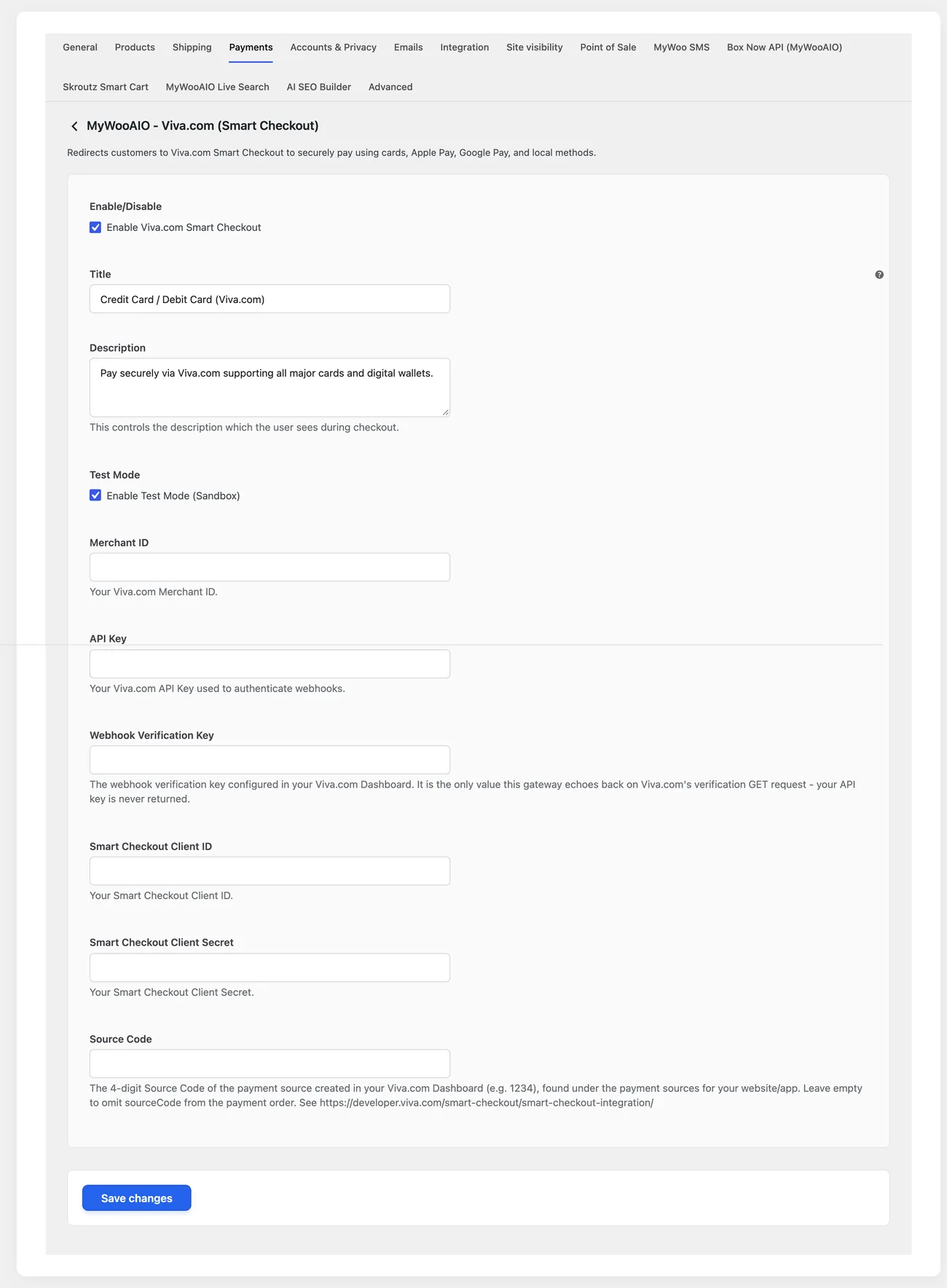
- TestingA Test Mode switch moves the gateway to the test environment with no code change
Setup guide
Viva Wallet charges by card and also with the wallets the customer has set up on their device, and the plugin places them at checkout without the old difficult flow. Refunds are made from the order and the notifications keep the status correct. It is aimed at shops with a business account at Viva.
- 1
Get the account details and the source code
You need the merchant number, the integration key and, if the shop connects through a partner, the application details. Ask separately for the source code for online payments, because the same account can have several sources, one for each terminal and one for the web, and the wrong code sends the shop payments to the wrong place. Keep the details somewhere safe and not in notes on the computer.
- 2
Enter the details and enable the method
In the settings enter the merchant number, the key, the source code and, if the plugin asks for it, the details of the connection application. Enable the method and leave test mode on until you finish the checks. Give it a title that describes what the customer sees, for example "Card or wallet payment", and hide from the method the capabilities the shop does not support.
- 3
Register the notification address
Viva notifies the shop of the outcome of every transaction, so copy the address the plugin gives you and register it in the bank panel. Before you go further, open the address from a mobile network, so you know it passes without a filter, without authentication and without caching. If the shop has a bot protection system, add an exclusion, otherwise the notifications are rejected silently.
- 4
Test a payment, a decline and a refund from the order
Buy something with your own card and see the order move to a status that shows it was paid. Then try a card that gets declined, checking that the customer stays at checkout with a clear message and their cart intact. Then issue a refund from the order and not from the Viva panel, and check two things: that the amount was returned and that the shop recorded the refund in the order history.
- 5
Check the wallets from a real phone
Open the checkout from a real phone and not from a preview, because device wallets only appear there and only if the device has a wallet set up. Pay a small amount that way and see whether the order closes correctly, because wallet payments take a different path from a plain card. If the shop offers instalments, also check that the instalment amount is calculated with the correct interest.
- 6
Go live and write the process down
Enter the production details, turn test mode off and make a small purchase. Then write in two lines what the shop does when an order stays in pending payment: who checks it, where, and within how long. Without that rule the pending orders pile up, and your first serious argument with a customer will happen over one of them.
Common mistakes
- A source code from a physical store terminal. The method shows up as usual and the payments are declined.
- Notifications that were not registered with the bank. Orders stay pending while the card has been charged.
- Refunds from the bank panel. The shop keeps counting the sale and the books do not agree.
- Testing on desktop only, with no device wallet. Wallet payments were never tested before the shop opened.
More plugins in this category
Questions
About Viva Wallet Smart Checkout
Can I issue a refund straight from WooCommerce?
Yes. Our architecture reads the refunds you raise in the dashboard, full or partial, and reports them back to Viva right away.
Licence
Included in the MyWooAIO suite, along with every other plugin, for a single payment.
- Instant 1-click install
- Updates included for life
- Support in Greek
Installation
- Install the MyWooAIO Manager
- Paste your licence key
- One click: the plugin installs and activates itself
- Updates arrive on their own, from the dashboard
Add Viva Wallet Smart Checkout to your shop
One payment, updates included, no subscription.