
Eurobank Worldline
Complete integration for Eurobank Worldline. Easily connect your store with seamless and robust syncing.
- 5.0.0Version
- 2PHP files

01
What it does
Written for WooCommerce, without third-party ballast: the same behaviour, fewer queries.
Upgrade your WooCommerce experience with our native Eurobank Worldline integration. Enjoy high performance with zero database bloat and native HPOS support. Start managing your store efficiently.
Capabilities
- High Performance Order Storage (HPOS) Ready
- Action Scheduler Asynchronous Syncing
- Full API capabilities & Dashboard reporting
02 — What runs in the background
What the source code actually registers, read from the plugin itself.
- PermissionsEach action checks the user's capabilities (1 checks)
- TranslationEvery string is translatable
Real screen
The Eurobank gateway settings
A test or live environment choice, inside the gateway settings.
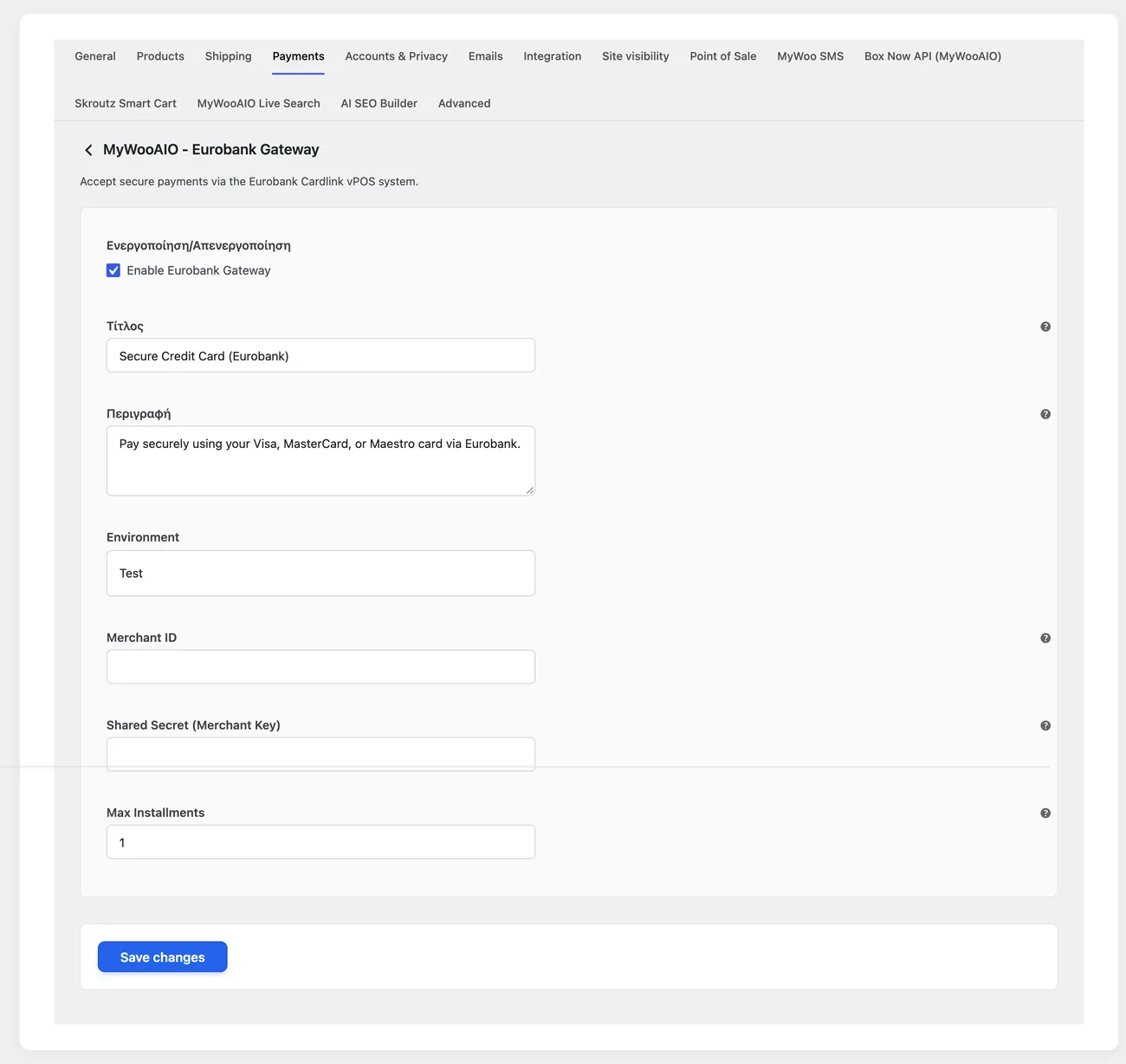
- TestingA test environment exists through Cardlink, at eurocommerce-test.cardlink.gr
Setup guide
The card is still how most customers pay in a Greek shop, and the Eurobank integration is one of the most requested. The plugin puts the charge, the card authentication and the refunds inside WooCommerce, so you do not have to enter the bank environment for every transaction. It is aimed at shops with a Worldline agreement that want instalments and settlement from the admin.
- 1
Get the terminal keys from Eurobank
In the Worldline agreement you will find the merchant number and the secret key, the two values every payment request is signed with. Ask for them, and ask separately for the matching test keys, because most installations start with production keys and then never dare to run a single test. Copy them into a note with no leading or trailing spaces, because the invisible space from a copy is the most common mistake in this integration.
- 2
Enter the keys and leave test mode on
On the plugin settings page, in the fields for the provider keys, paste the merchant number and the secret key, and enable the card payment method. Keep test mode on until you finish testing, so your tests do not move money. Give the method a title the customer understands, for example "Card payment", and not the bank name, because the buyer does not look at which bank sits behind the charge.
- 3
Decide whether the charge captures at once or is held
Choose whether the transaction settles immediately or holds the amount until you close it yourself. Settlement is simpler, because the amount is charged once and needs no second action, which suits shops that ship straight away. A hold helps when you want to check stock or customer details before charging, but then every order waits for a move from you and any you forget expires on its own, leaving the customer with no order.
- 4
Test a purchase and a decline
With test mode on, buy a cheap product with your own card, complete the bank authentication, then open the order in the admin. You should see the transaction status, its identifier and the option to refund the amount. Also try a card that gets declined: the order should stay pending, the customer should see a clear message and the cart should not be lost, because that is where half the sales of a bad installation disappear.
- 5
Go live, test a small amount and issue a refund
Replace the test keys with the real ones, turn test mode off and make a small purchase with your own card. Then issue a refund from the order and not from the bank system. If both actions look correct on both sides, the integration is ready. If only the refund is missing, the problem is usually the account permissions and it is solved with a request to Eurobank.
Common mistakes
- Spaces or mixed lower and upper case in the keys, from copying with the mouse. The request signature does not come out and the error you see is generic. Retype them by hand.
- Production keys with test settings still on. Orders look paid while no charge has gone through.
- The method enabled but restricted to a specific payment zone or customer group, so the customer does not see it at checkout and assumes the shop does not take cards.
- Refunds made from the bank environment and not from the order. The shop keeps counting the sale and your books do not agree with what you received.
More plugins in this category
Questions
About Eurobank Worldline
Are card details stored on my store?
No, the add-on keeps no card details locally. The transaction runs through the bank's environment with authentication in place.
Can I refund from WooCommerce?
Yes, the refund is issued from the order actions, without logging into the bank's system. It works for both full and partial refunds.
Should I choose capture or pre-authorisation?
In the settings you choose whether the amount is captured at once or held as a pre-authorisation. A hold gives you room before the customer is charged.
Do interest-free instalments show up?
Yes, instalments are recognised automatically and you turn the option on or off from the settings. The relevant calculations appear at checkout.
What do I need from the bank and from my server?
Your Eurobank Worldline credentials and the shared secret. You also need PHP 8.0 or newer, otherwise the transaction signature is not valid.
Licence
Included in the MyWooAIO suite, along with every other plugin, for a single payment.
- Instant 1-click install
- Updates included for life
- Support in Greek
Installation
- Install the MyWooAIO Manager
- Paste your licence key
- One click: the plugin installs and activates itself
- Updates arrive on their own, from the dashboard
Add Eurobank Worldline to your shop
One payment, updates included, no subscription.