
Universal Tracking Platform
Complete integration for Universal Tracking Platform. Easily connect your store with seamless and robust syncing.
- 5.0.0Version
- 4PHP files
01
What it does
Written for WooCommerce, without third-party ballast: the same behaviour, fewer queries.
Upgrade your WooCommerce experience with our native Universal Tracking Platform integration. Enjoy high performance with zero database bloat and native HPOS support. Start managing your store efficiently.
Capabilities
- High Performance Order Storage (HPOS) Ready
- Action Scheduler Asynchronous Syncing
- Full API capabilities & Dashboard reporting
02 — What runs in the background
What the source code actually registers, read from the plugin itself.
- HPOSCompatible with WooCommerce High-Performance Order Storage
- Form safetyEvery submitted form is nonce-checked
- PermissionsEach action checks the user's capabilities (1 checks)
- TranslationEvery string is translatable
Real screen
The tracking box inside the order
Just two fields: which carrier and which tracking number. The customer then follows the shipment from their order page.
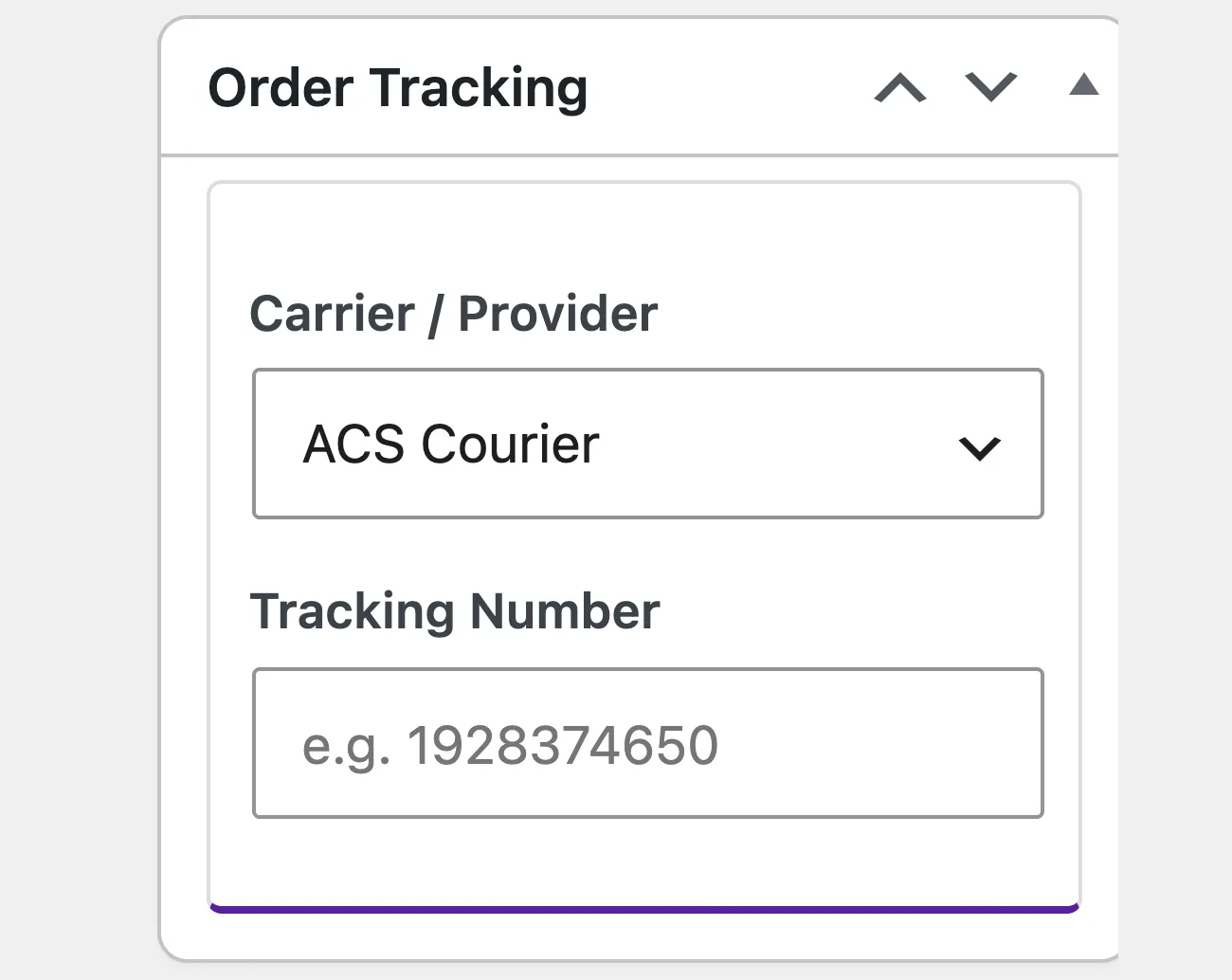
- No settings pageIt adds no settings menu; it works where the job is done, inside the order
Setup guide
Questions about where a parcel is make up the largest part of the support load of a shop. The plugin builds a page where the customer enters the order number and sees the progress, pulling data from the courier integrations. It is for shops that have at least one active courier integration in the suite.
- 1
Make sure a courier integration is active
The tracking page has no data of its own, it pulls from the courier integrations, so without one active integration the page opens and shows nothing. Open the list of integrations and make sure at least one is active and has worked on a real order. If you have several, check that all of them return data, because the page uses whichever one it finds with the tracking number.
- 2
Open the page and turn the service on
Turn on the tracking service and make sure the page was created at the address you want. Open it in a window with no login and make sure it loads normally and that the input field is clearly visible on a phone. Write the title and the instructions in words a customer understands, because a field with no explanation goes unused and the customer phones instead. Add one line saying what the customer needs in order to find their order, so they do not stop at the first step.
- 3
Set the look and whether the carrier name shows
Choose the colours and the layout that match the shop and decide whether the customer will see which carrier is moving the parcel. Hiding it makes the page look like your own and avoids questions about why the carrier changed, but if the customer wants to go to a carrier branch you will still have to tell them which one it is. Keep the look simple, without many colours, because the page is mostly read on a phone.
- 4
Test with a real tracking number
Take an order that has already shipped and enter its number on the page, together with the email the order was placed with. You should see the progress with its stages, not a not found message, because the second means the integration is not returning data for that carrier. Test a number that does not exist as well, to make sure the error message is clear and shows no technical details.
- 5
Link the address into the shop messages
Put the page address in the email that carries the tracking number, so the customer does not have to look for it. Add the link on the customer account page and in the footer too, because otherwise old orders have no way to be tracked. Then check that the link works from a phone and that it does not lose the order details when it opens in a new tab.
- 6
Check caching and the courier rate limits
The page asks the courier integrations, and carriers put a limit on calls, so make sure the results are kept for a while and are not requested again on every refresh. If the same parcel appears not to update, the cache is holding old data and the window needs to be shorter. Also check that the page is not blocked by the page cache plugin.
Common mistakes
- No active courier integration. The page opens and shows nothing, and the customer thinks the shop has no idea where the parcel is.
- An order number requested with no second identifier. The customer is locked out of their own data, or sees the order of someone else.
- A page that no shop message ever mentions. The customer cannot find it and phones.
- A page cache that keeps the old version. The customer sees stages that happened days ago.
More plugins in this category
Questions
About Universal Tracking Platform
What does the customer enter to see their parcel?
Their email and the order number. From there they see the journey on a single timeline.
Do they need to know which courier has the parcel?
No, the courier name can stay hidden. The customer sees the steps and the status.
Do I need a separate add-on for each courier?
No, there is one tracking page and it covers the couriers we work with. You do need at least one active MyWooAIO courier add-on.
Is the link sent to the customer?
Yes, it can be added to the order email automatically. So the customer does not have to hunt for the page.
If many customers check their parcel at once, will I hit the couriers' rate limits?
Results are held in cache, so the same request is not repeated over and over. That lowers the risk of reaching the limits the couriers set.
Licence
Included in the MyWooAIO suite, along with every other plugin, for a single payment.
- Instant 1-click install
- Updates included for life
- Support in Greek
Installation
- Install the MyWooAIO Manager
- Paste your licence key
- One click: the plugin installs and activates itself
- Updates arrive on their own, from the dashboard
Add Universal Tracking Platform to your shop
One payment, updates included, no subscription.