
Smart COD - Cash on Delivery
Complete integration for Smart COD - Cash on Delivery. Easily connect your store with seamless and robust syncing.
- 5.0.0Version
- 32PHP files
01
What it does
Written for WooCommerce, without third-party ballast: the same behaviour, fewer queries.
Upgrade your WooCommerce experience with our native Smart COD - Cash on Delivery integration. Enjoy high performance with zero database bloat and native HPOS support. Start managing your store efficiently.
Capabilities
- High Performance Order Storage (HPOS) Ready
- Action Scheduler Asynchronous Syncing
- Full API capabilities & Dashboard reporting
02 — What runs in the background
What the source code actually registers, read from the plugin itself.
- HPOSCompatible with WooCommerce High-Performance Order Storage
- Form safetyEvery submitted form is nonce-checked
- PermissionsEach action checks the user's capabilities (4 checks)
- TranslationEvery string is translatable
Real screen
Cash on delivery, with our own tabs
The plugin does not add another gateway: it adds tabs to the familiar cash-on-delivery method.
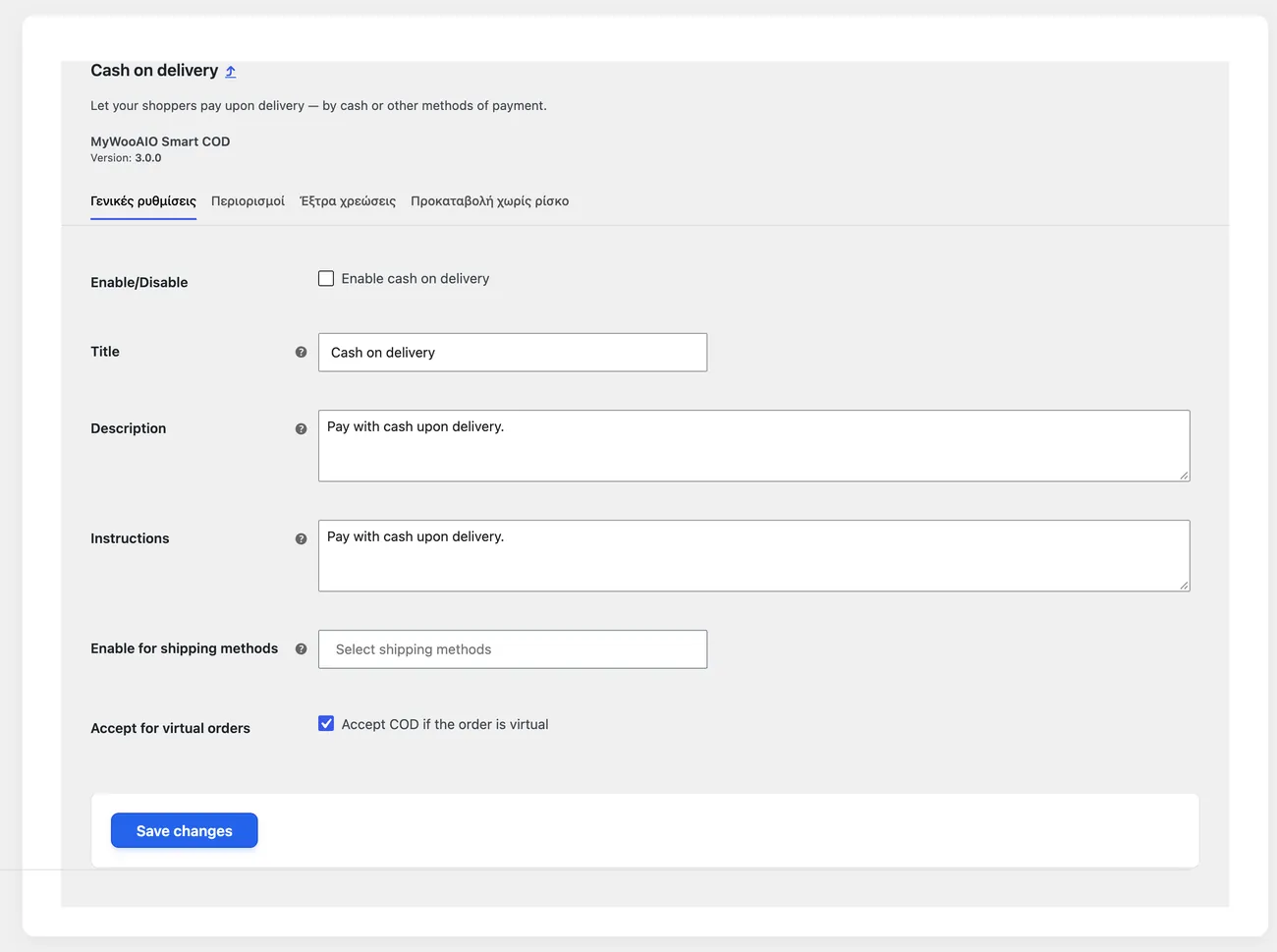
- TabsGeneral settings, Restrictions, Extra charges, Prepayment without risk
- One gateway onlyCustomers see one payment method, not two identical ones
04 — For developers
Every filter and action the plugin fires, with the file and line where it lives.
Filters — 9
- mywoo_aio_smart_cod_rf_fee
- mywoo_aio_smart_cod_fee_title
- mywoo_aio_smart_cod_fee
- masc_remaining_amount_title
- mywoo_aio_smart_cod_rf_fee_total_title
- masc_addons
- mywoo_aio_smart_cod_admin_settings
- mywoo_aio_smart_cod_max_coupons_fetch
- mywoo_aio_smart_cod_available
Actions — 4
- before_apply_smartcod_fees_rf
- before_apply_smartcod_fees
- after_wsc_settings
- after_wsc_settings_
Stored settings
8 settings, kept in your own shop database. You manage them from the settings screens and you never edit them by hand.
Setup guide
Cash on delivery brings orders but also cost: fees for the shop, risky areas and refused parcels. The plugin gives you multiple charges, exclusions by area and the option of a partial deposit. It is for shops paid mostly by cash on delivery that want to keep control.
- 1
Set the base charge and the free threshold
Enter the charge the customer pays for cash on delivery and the amount above which the charge drops to zero. Free cash on delivery above a set amount raises the average order value, but work out the cost of moving the money, because cash on delivery costs the shop on every order. If you have several charges, make sure two of them are not applied together on the same order.
- 2
Exclude the areas you do not serve
Type the postcodes where you do not want cash on delivery offered, because those are usually where shipping costs far more or refused parcels are common. Separate them with commas, with no spaces at the edges, because a code with a space is not recognised and the exclusion never applies. Then test the checkout with one of those postcodes, to make sure the method really disappears.
- 3
Set up the partial deposit
If the shop gets frequent refusals, turn on the partial deposit, so the customer pays a percentage by card and the rest goes by cash on delivery. Pick a percentage that makes sense, because a one euro deposit holds no one back and a sixty percent deposit drives customers away. Check that after the deposit the customer clearly sees the balance and that the order keeps both amounts separate.
- 4
Check the blocked customer list
If the shop has customers who never collected, add them to the block list by email or phone, so they cannot order cash on delivery again. Check that the block does not stop the customer buying by card, because the point is not to lose the customer but to reduce the loss. Test the list with one of your own emails, so you can see what a blocked customer sees.
- 5
Test the checkout with different orders
Place an order with a normal postcode, with an excluded postcode and with an amount above the free threshold, checking each time the charge shown and the final total. Then open the admin and make sure the charge passed into the order as a separate line and not inside a product price. If the shop has virtual products, check separately whether you want cash on delivery allowed on them, because it usually makes no sense.
- 6
Set up a check of the losses
Every month look at the cash on delivery orders that were never delivered and the charges you paid for them, because that is the real cost of the method. Based on those numbers, adjust the charge, the excluded areas and the deposit percentage. Without this check the method looks profitable because everyone picks it, while in reality the margin is disappearing. Keep the numbers of the month in one place and compare them with the previous month, so you can see whether the change in charges made a difference.
Common mistakes
- Postcode exclusions with spaces. The codes are not recognised and the exclusion never applies.
- A deposit that is not explained to the customer. They do not understand why they pay now and the rest at the door.
- Cash on delivery available on virtual products, which means orders with nothing to ship.
- Multiple charges applied together without you noticing. The charge at checkout does not match the one in the admin.
More plugins in this category
Questions
About Smart COD - Cash on Delivery
Can I block cash on delivery for the islands?
Yes. Through the Restrictions module in Smart COD you just enter the island postcodes and the payment method is switched off automatically for those carts.
How does the partial advance work?
Once you enable it, the customer is asked to pay a percentage, say 20%, by card before the order is locked in. The rest goes cash on delivery.
Licence
Included in the MyWooAIO suite, along with every other plugin, for a single payment.
- Instant 1-click install
- Updates included for life
- Support in Greek
Installation
- Install the MyWooAIO Manager
- Paste your licence key
- One click: the plugin installs and activates itself
- Updates arrive on their own, from the dashboard
Add Smart COD - Cash on Delivery to your shop
One payment, updates included, no subscription.