
DIAS IRIS (A2A Payments)
Complete integration for DIAS IRIS (A2A Payments). Easily connect your store with seamless and robust syncing.
- 5.0.0Version
- 2PHP files

01
What it does
Written for WooCommerce, without third-party ballast: the same behaviour, fewer queries.
Upgrade your WooCommerce experience with our native DIAS IRIS (A2A Payments) integration. Enjoy high performance with zero database bloat and native HPOS support. Start managing your store efficiently.
Capabilities
- High Performance Order Storage (HPOS) Ready
- Action Scheduler Asynchronous Syncing
- Full API capabilities & Dashboard reporting
02 — What runs in the background
What the source code actually registers, read from the plugin itself.
- HPOSCompatible with WooCommerce High-Performance Order Storage
- TranslationEvery string is translatable
Real screen
The IRIS gateway settings
The IRIS gateway, configured inside WooCommerce.
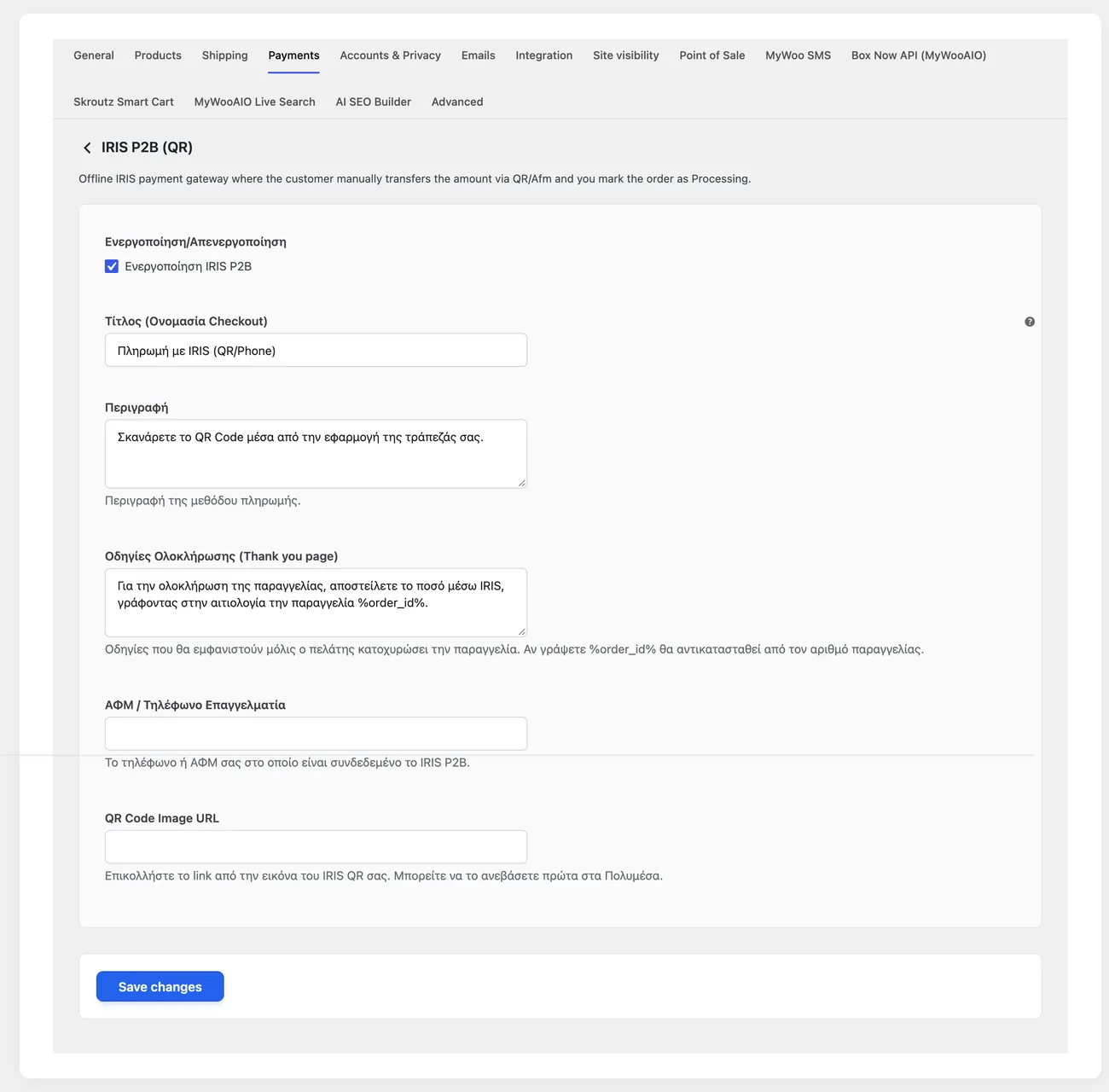
- TestingThis older gateway has no test option; it is superseded by IRIS via ΔΙΑΣ, which does
04 — For developers
Every filter and action the plugin fires, with the file and line where it lives.
Filters — 1
- active_plugins
Stored settings
6 settings, kept in your own shop database. You manage them from the settings screens and you never edit them by hand.
Setup guide
IRIS lets the customer pay by transfer from their online banking environment, at zero or minimal fee for the shop compared to cards. The plugin shows a code to scan on the confirmation page and keeps the order pending until the deposit is confirmed. It is aimed at shops with a business account active on IRIS.
- 1
Confirm that the account is active for businesses
The payment arrives directly in the business account of the shop, so the account must have the business feature enabled and your tax number must be registered correctly. Ask the bank whether the account accepts payments from customers of other banks, because that is where you lose the customers who see an option that does not complete. Keep the account number and the tax number exactly as the bank gives them, with no spaces.
- 2
Enter the account details in the plugin
In the settings enter the tax number of the business and the account number the amounts will be deposited into. Check the tax number twice, because one wrong digit creates a payment code no bank recognises and the customer simply sees that the payment does not proceed. Then write the instructions the customer will see, in one or two sentences, explaining that they open their online banking and scan the code.
- 3
Enable the method and check where the code appears
Enable the payment method and make sure it appears at checkout for the customers you want, and not on orders the shop excludes. Place an order and look at the confirmation page on desktop and on a phone, because the code has to be large and clear on a phone screen. Also check that the code is sent in the order email, because many customers close the page before scanning it.
- 4
Make a real transfer of a small amount
Pay for a cheap product with your own transfer, after closing the shop page first, so you can see what happens when the customer is not in front of it. Then open the order in the admin and make sure it stayed pending and that the amount that arrived in the account matches the order amount. If the amount differs, the corresponding settings for products or shipping are not correct.
- 5
Decide who checks the deposits and when
IRIS does not close the order by itself on a code transfer, so the shop needs a rule. Assign one person to check the account activity, once or twice a day at fixed times, and to change the status of the orders that were paid. Also write how the customer is notified, because a customer who paid and received no message for two days will call or ask for a refund.
- 6
Check the cases that fall outside the norm
Test what happens when the customer pays more or less than the amount, because it happens when the shipping method changes after the order. Also test an order cancelled after payment, so you know how the amount is returned by transfer, because a card refund does not exist here and the process is manual. Keep a note of what the shop does in each case, otherwise every employee will handle it differently.
Common mistakes
- Orders left pending that are never checked. The customer paid, the shop does not know and the order never ships.
- A wrong tax number or account number. The payment code is not recognised by any bank and the customer sees a failure.
- A deposit amount that does not match the order, because the shipping method changed after checkout.
- Refunds by the same method with no process set up. The shop owes an amount that appears nowhere.
More plugins in this category
Questions
About DIAS IRIS (A2A Payments)
Is IRIS free for me?
Unlike cards, which charge around 1.2%, IRIS P2B costs from 0% up to a few cents per transaction, which saves you a substantial amount every month.
How do I know I have been paid?
Confirmation is offline, done by hand. The customer order sits as On hold. Once your e-banking shows the transfer, you move it to Processing.
Licence
Included in the MyWooAIO suite, along with every other plugin, for a single payment.
- Instant 1-click install
- Updates included for life
- Support in Greek
Installation
- Install the MyWooAIO Manager
- Paste your licence key
- One click: the plugin installs and activates itself
- Updates arrive on their own, from the dashboard
Add DIAS IRIS (A2A Payments) to your shop
One payment, updates included, no subscription.