
Direct Deposit (DIAS API)
Complete integration for Direct Deposit (DIAS API). Easily connect your store with seamless and robust syncing.

01
What it does
Written for WooCommerce, without third-party ballast: the same behaviour, fewer queries.
Upgrade your WooCommerce experience with our native Direct Deposit (DIAS API) integration. Enjoy high performance with zero database bloat and native HPOS support. Start managing your store efficiently.
Capabilities
- High Performance Order Storage (HPOS) Ready
- Action Scheduler Asynchronous Syncing
- Full API capabilities & Dashboard reporting
Real screen
The IRIS via ΔΙΑΣ settings
ΔΙΑΣ credentials and an environment choice, on the same screen.
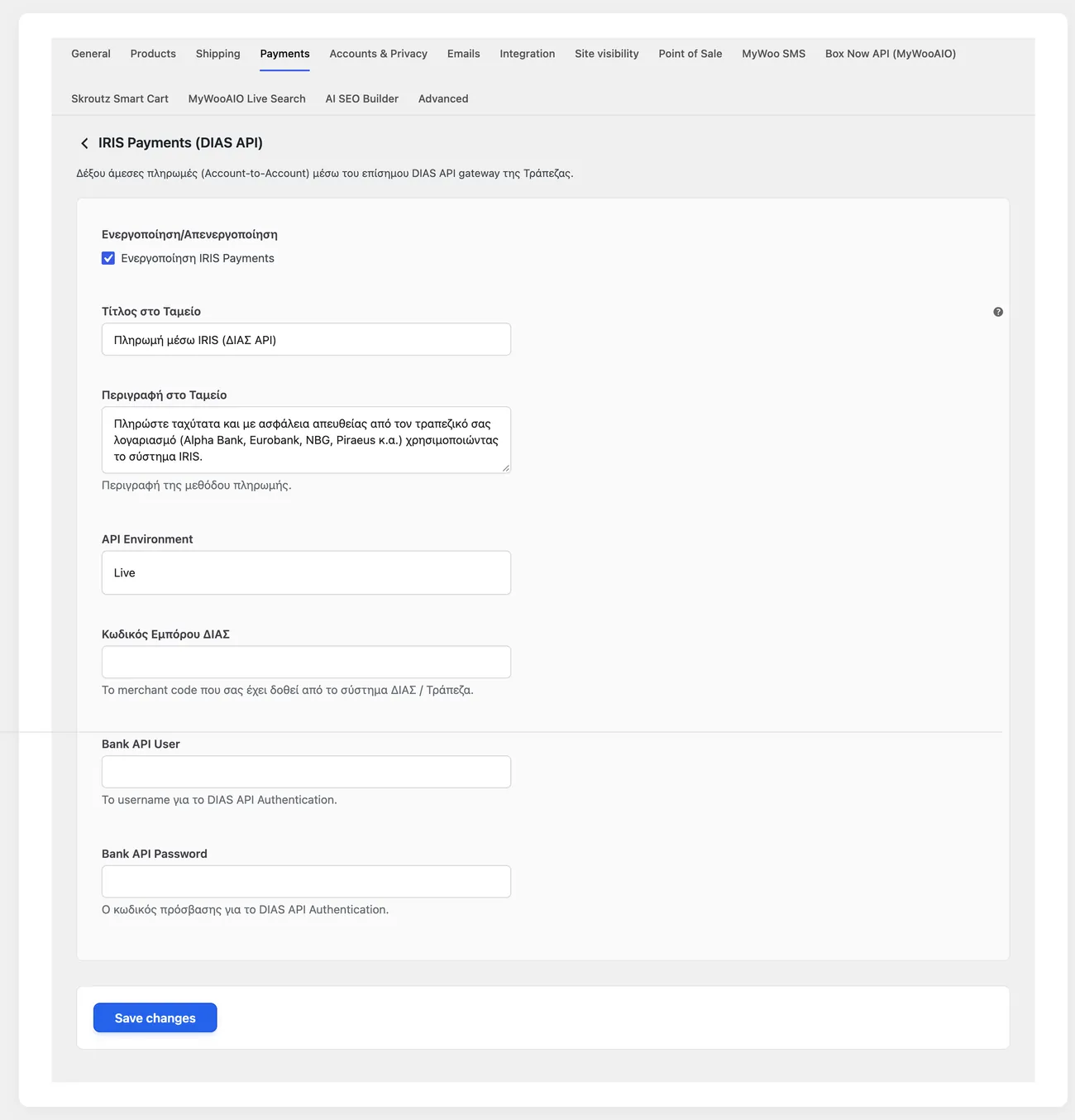
- TestingA Live or Test choice, with test codes issued by ΔΙΑΣ
Setup guide
When IRIS is connected to the DIAS integration, the customer pays from their own bank and the order closes on its own as soon as the transaction is confirmed. The plugin sends the customer to the secure bank environment and is updated by notifications and by a fallback check. It is aimed at shops that have received e-commerce credentials for DIAS.
- 1
Get the credentials from the bank that settles you
DIAS does not issue the credentials directly to the shop; they come from the bank you work with, after it activates the merchant code in the system. Ask for the merchant code, the service username and the test environment details, and ask whether you need to register the return addresses in advance. Without those registrations the customer pays and comes back to a page that is not found.
- 2
Enter the details and choose the environment
In the plugin settings enter the merchant code and the service details, and choose the test environment so the first tests do not move real money. Enable the payment method and give it a title that explains the payment happens through the bank of the customer, because the customer does not know what direct deposit means and may think they have to do something themselves.
- 3
Check that the notifications and the return page work
Open the address the plugin gives for notifications from a mobile network and make sure it responds without authentication and without delay. Then open the return page in a private window, because if it asks for a login the customer will pay and then see a login page instead of the result. If the shop has a security plugin or a bot protection system, add an exclusion for both addresses.
- 4
Test a payment all the way through
Buy something with your own card and complete the flow inside the bank environment. Then open the order in the admin and check that it changed status with no action from you, because that is the whole point of this integration. Also test a payment that is cancelled, to confirm the order stays pending and the customer sees a message explaining what happened.
- 5
Make sure the fallback check is running
Besides the notifications, the plugin periodically checks whether a transaction completed without an update, because notifications are lost when the server has a momentary problem. Open the scheduled tasks page and make sure it runs, because on a shop with little traffic WordPress tasks do not start by themselves. If it does not run, orders that were not updated will stay open forever.
- 6
Go live and check one transaction in the account
Enter the production credentials, turn the test environment off and make a small real transaction. Then open the movement in the bank account and make sure the amount arrived, along with the correct identifier, so you can match receipts to orders. Keep doing this for the first days of operation too, so a mistake shows up the same day.
Common mistakes
- Addresses that were not registered with the bank. The customer pays and does not return to the shop correctly.
- Scheduled tasks that do not run. Orders stay pending while the money has already left.
- Test credentials on a production shop. Transactions are never settled but the orders close.
- Testing only with a successful payment. You do not know what the customer sees when a transaction is cancelled.
More plugins in this category
Questions
About Direct Deposit (DIAS API)
What is the difference from P2B?
P2B with the QR code waits for you to confirm the transfer yourself. This add-on redirects the customer into the DIAS system, and as soon as the payment is confirmed WooCommerce is updated entirely on its own through our webhook.
Does it need Action Scheduler?
No, it uses a fully harmonised WP-Cron setup that stays compatible with old and new servers alike, polling every 5 minutes in case a payment request times out.
Licence
Included in the MyWooAIO suite, along with every other plugin, for a single payment.
- Instant 1-click install
- Updates included for life
- Support in Greek
Installation
- Install the MyWooAIO Manager
- Paste your licence key
- One click: the plugin installs and activates itself
- Updates arrive on their own, from the dashboard
Add Direct Deposit (DIAS API) to your shop
One payment, updates included, no subscription.