
VAT Validation (AADE) & B2B
Complete integration for VAT Validation (AADE) & B2B. Easily connect your store with seamless and robust syncing.
- 5.0.0Version
- 2PHP files
01
What it does
Written for WooCommerce, without third-party ballast: the same behaviour, fewer queries.
Upgrade your WooCommerce experience with our native VAT Validation (AADE) & B2B integration. Enjoy high performance with zero database bloat and native HPOS support. Start managing your store efficiently.
Capabilities
- High Performance Order Storage (HPOS) Ready
- Action Scheduler Asynchronous Syncing
- Full API capabilities & Dashboard reporting
02 — What runs in the background
What the source code actually registers, read from the plugin itself.
- HPOSCompatible with WooCommerce High-Performance Order Storage
- PermissionsEach action checks the user's capabilities (1 checks)
- TranslationEvery string is translatable
Real screen
The invoicing settings
Access details for the ΑΑΔΕ services, so the customer's data arrives filled in at checkout.
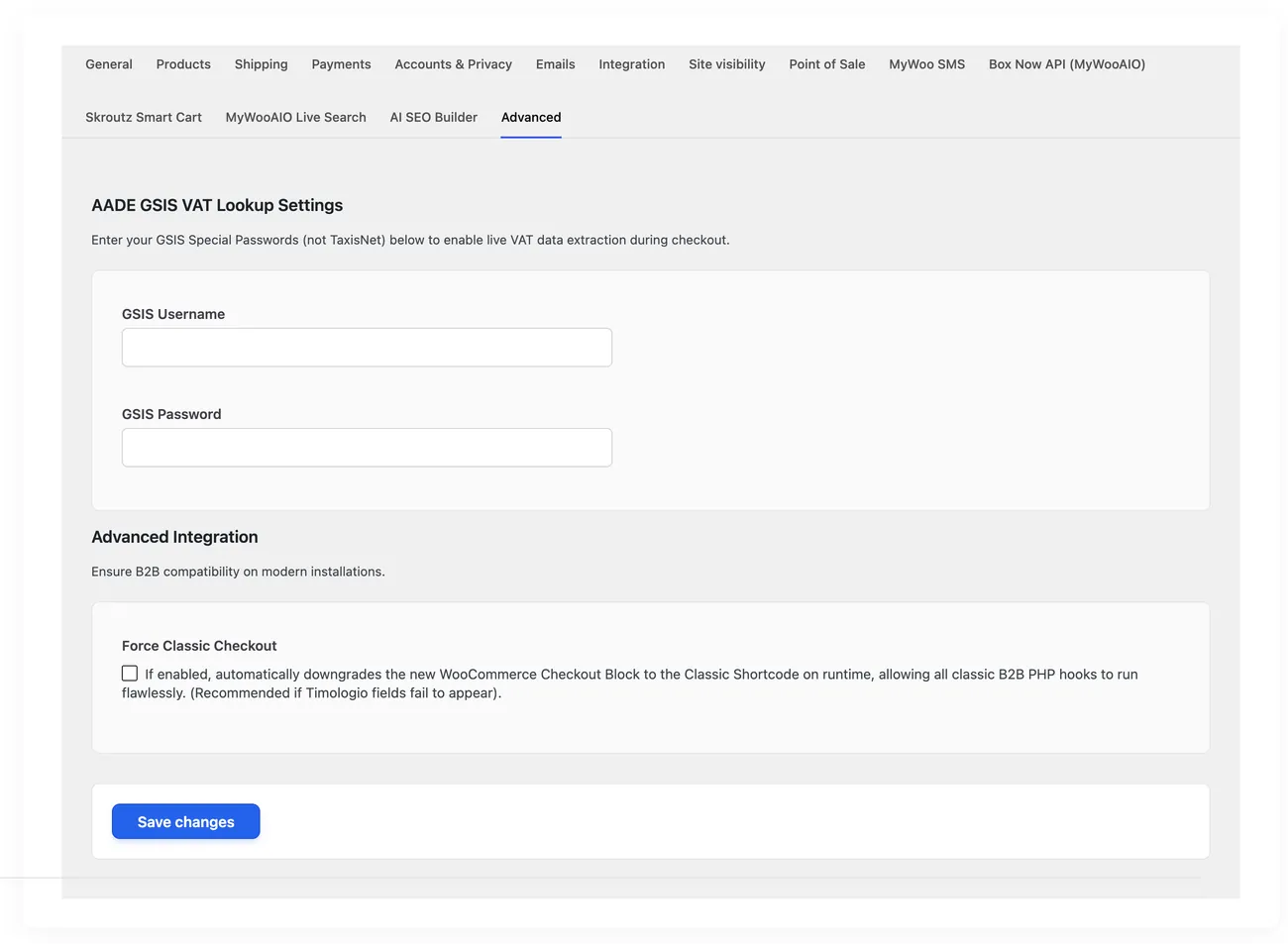
- What it doesIt pulls the company details from ΑΑΔΕ and flags the order as one that needs an invoice
- What it does not doIt does not submit documents to myDATA. Issuing and submitting happen in your accounting software
- CompatibilityAn option for the classic checkout, when VAT fields fail to appear with blocks
Setup guide
Business customers mistype their details at checkout and then the invoice cannot be issued, which means phone calls and delays. The plugin adds the option to request an invoice at checkout and checks the VAT number against the AADE service, bringing back the company name, the address and the activity. It is for shops that sell to businesses.
- 1
Get the special web credentials from AADE
The VAT lookup service asks for the special web credentials, not the credentials you use in your invoicing system. Ask for them for the user who is allowed to represent the business, because with an employee account the lookup comes back as a refusal that looks like a wrong VAT number. Test the credentials first, so you know they work before you put them in the shop, and find out whether and when they expire.
- 2
Enter the credentials and switch the invoice option on
In the settings enter the username and the password of the service and turn on the option that shows the invoice request at checkout. Then open the checkout and make sure the option sits in a visible spot and that the company fields appear only when the customer picks it. Make sure the company fields do not show on an ordinary retail purchase, because they confuse customers buying for themselves.
- 3
Decide what is required and what is optional
Choose which invoice fields are required, such as the VAT number and the company name, and which are optional, such as the activity or the tax office code. Every required field you add costs you abandoned carts, so keep only the ones your accountant really needs to issue the document. If the shop has separate prices for businesses, this is also where that difference shows up.
- 4
Test your own VAT number and a fake one
Place an order with your own business VAT number and make sure the details fill in within a few seconds and match what you know about the business. Then try a VAT number with a wrong digit, because the lookup has to reject it with a clear message and not let the order go through with wrong details. If the lookup is very slow, consider keeping it optional and letting the customer continue.
- 5
Check that the details reach the person who needs them
Open the order you placed and make sure the company details are saved and appear where the shop normally looks for them. Then check the confirmation email and the printed documents, because those are the two places the customer sees their own details and a mistake there generates phone calls. If the shop sends orders into an accounting system, check that the fields export correctly.
- 6
Decide what the shop does when the lookup does not answer
The AADE service has hours when it does not answer, and the shop must not stop selling during those hours. Decide what happens: if the lookup does not answer, the customer types the details manually and the order goes through, with a note to recheck the next working day. Write this rule in one sentence and give it to your staff, because otherwise everyone will decide for themselves.
Common mistakes
- Credentials without representation rights. The lookup rejects correct VAT numbers and the shop thinks the customer is at fault.
- Required company fields on every retail order. Abandoned carts go up for no reason.
- A VAT number that passes unchecked and reaches the invoice wrong. Correcting it after issue costs more.
- A lookup that stops sales when the service has a problem. Without a plan for that case, the checkout closes.
More plugins in this category
Questions
About VAT Validation (AADE) & B2B
Does it issue invoices to MyDATA automatically?
No. Its job is strictly B2B checkout validation. It pulls the correct company details so your WooCommerce order, and therefore your ERP, carries valid business data and avoids mistakes at invoicing time.
Licence
Included in the MyWooAIO suite, along with every other plugin, for a single payment.
- Instant 1-click install
- Updates included for life
- Support in Greek
Installation
- Install the MyWooAIO Manager
- Paste your licence key
- One click: the plugin installs and activates itself
- Updates arrive on their own, from the dashboard
Add VAT Validation (AADE) & B2B to your shop
One payment, updates included, no subscription.