
Speed Framework
Complete integration for Speed Framework. Easily connect your store with seamless and robust syncing.
- 5.0.9Version
- ≥ 5.8WordPress
- ≥ 7.4PHP
- 6PHP files

01
What it does
Written for WooCommerce, without third-party ballast: the same behaviour, fewer queries.
Upgrade your WooCommerce experience with our native Speed Framework integration. Enjoy high performance with zero database bloat and native HPOS support. Start managing your store efficiently.
Capabilities
- High Performance Order Storage (HPOS) Ready
- Action Scheduler Asynchronous Syncing
- Full API capabilities & Dashboard reporting
02 — What runs in the background
What the source code actually registers, read from the plugin itself.
- HPOSCompatible with WooCommerce High-Performance Order Storage
- PermissionsEach action checks the user's capabilities (3 checks)
Real screen
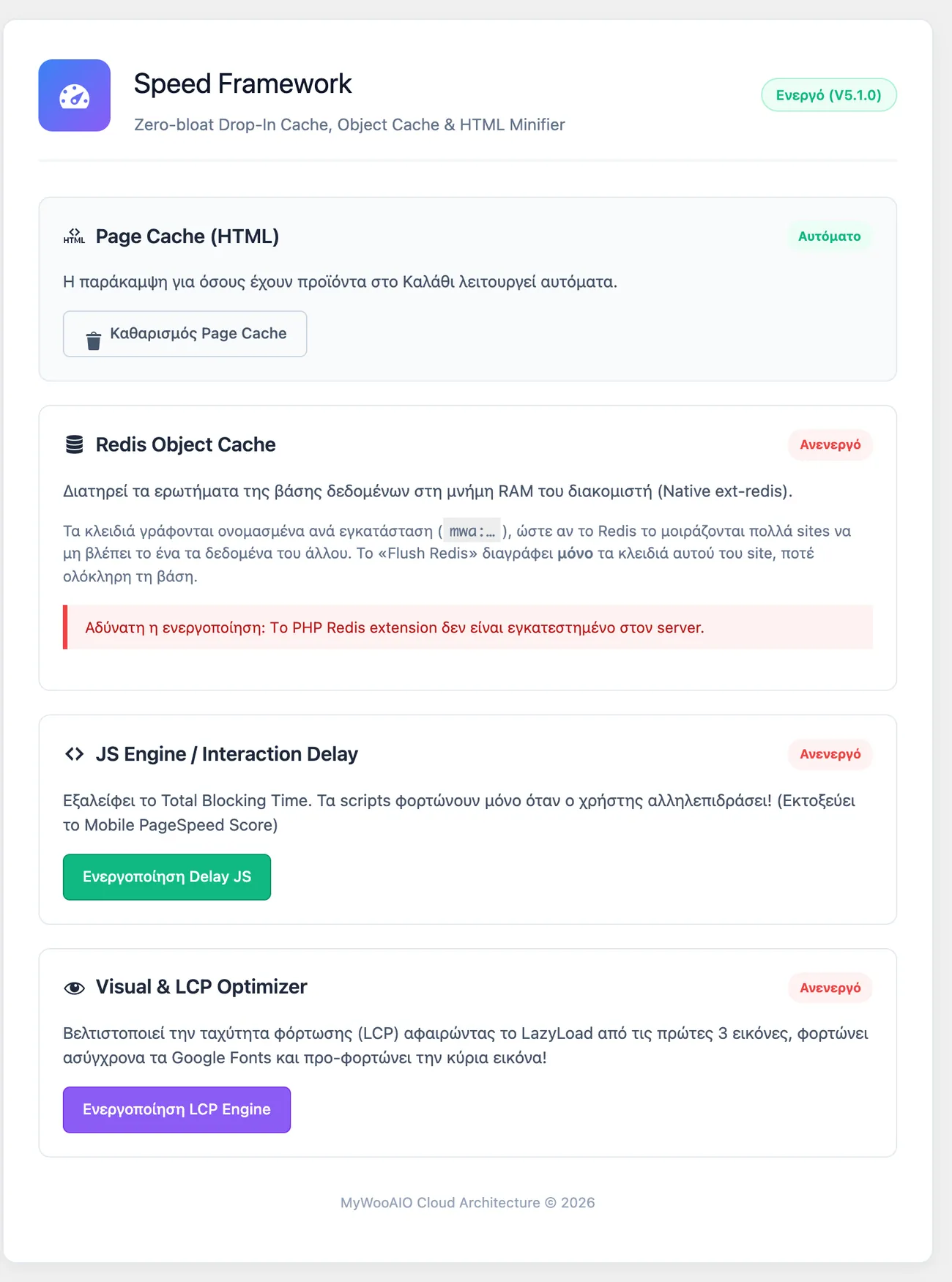
The speed settings
Which optimisation turns on and which stays off, side by side and explained.
Setup guide
The faster shop sells more, and the biggest time cost in a shop is building every page from scratch. The plugin keeps ready made pages and skips the database, while respecting the cart and the customer session. It is for shops that want a lower response time without a plugin that breaks the checkout.
- 1
Make sure the WordPress config file is writable
For the cache to work, the plugin needs to add one constant to the WordPress config file. Make sure the file is writable at the moment of activation and, if it is not, set that line by hand together with your server administrator. If it is never added, the cache looks active but serves nothing, and the load time does not improve at all.
- 2
Turn on the cache
Turn the feature on and open the home page in a window with no login, refreshing twice. On the second load the page should come back noticeably faster, because it is served from a ready made copy. If you want to confirm it, look at the response time in the server reply, because the difference shows there more clearly than by eye. Take the measurement in an hour with steady traffic and not right after maintenance work, because then the numbers are not comparable.
- 3
Leave the cart, checkout and account out
Open the list of pages that must not be cached and make sure it includes the cart, the checkout, the order received page, the customer account and every page with a form. Add anything else with content customised for the customer, such as member only offer pages, because a cached page can show one customer the cart of another. Then check that the cart updates normally when you add a product.
- 4
Check the purge after changes
Change the price of a product and then open its page in a window with no login, to see whether the new price appears straight away. The plugin clears the related copies when a product, a stock level or an order changes, but it is worth confirming, because an old price on a live shop creates an argument with the customer. Test the same after a change on the home page and in a menu.
- 5
Measure the result before and after
Before you turn it on, measure the load time of the home page, a category and a product with some measuring tool. After you turn it on, measure the same three points at the same time of day, so the comparison means something, and keep the numbers. If the difference is small, the bottleneck is some other tool or an external script that is slow, because the cache only cuts the page time.
- 6
Be careful not to run two caching systems
If the server, the delivery network or the theme itself has its own cache, keep only one of them active, because two systems that clear copies separately create pages that do not update. Watch the order and the confirmation pages in particular, because there a mistake is not a slow page but wrong data. Keep a note of the exclusions, because each new plugin may need its own.
Common mistakes
- The cart or the checkout ends up in a cached page. The customer sees an old state or the content of another customer.
- A purge that does not happen after a price change. The old price stays on the page and the customer asks for it at checkout.
- Two caching systems that clear separately. The page updates sometimes and sometimes not.
- A constant that was never added to the config file. The feature looks active and does nothing.
More plugins in this category
Questions
About Speed Framework
Do I have to clear the cache when I change a product?
No. It hooks straight into Woo and Elementor events such as save_post, updated_option and woocommerce_new_order and purges on its own (Magic Hooks).
Licence
Included in the MyWooAIO suite, along with every other plugin, for a single payment.
- Instant 1-click install
- Updates included for life
- Support in Greek
Installation
- Install the MyWooAIO Manager
- Paste your licence key
- One click: the plugin installs and activates itself
- Updates arrive on their own, from the dashboard
Add Speed Framework to your shop
One payment, updates included, no subscription.