

All plugins
Growth utilitiesVersion 5.0.12

Live Search (Zero Config)

Complete integration for AJAX Live Search. Easily connect your store with seamless and robust syncing.

  • 5.0.12Version
  • ≥ 5.8WordPress
  • ≥ 7.4PHP
  • 5PHP files

01

What it does

Written for WooCommerce, without third-party ballast: the same behaviour, fewer queries.

Upgrade your WooCommerce experience with our native AJAX Live Search integration. Enjoy high performance with zero database bloat and native HPOS support. Start managing your store efficiently.

Capabilities

  • High Performance Order Storage (HPOS) Ready
  • Action Scheduler Asynchronous Syncing
  • Full API capabilities & Dashboard reporting

02 — What runs in the background

What the source code actually registers, read from the plugin itself.

  • HPOSCompatible with WooCommerce High-Performance Order Storage
  • REST APIEndpoints: mywoo-aio/v1
  • Shortcode[mywoo_aio_live_search]
  • Form safetyEvery submitted form is nonce-checked
  • PermissionsEach action checks the user's capabilities (3 checks)
  • TranslationEvery string is translatable

Real screen

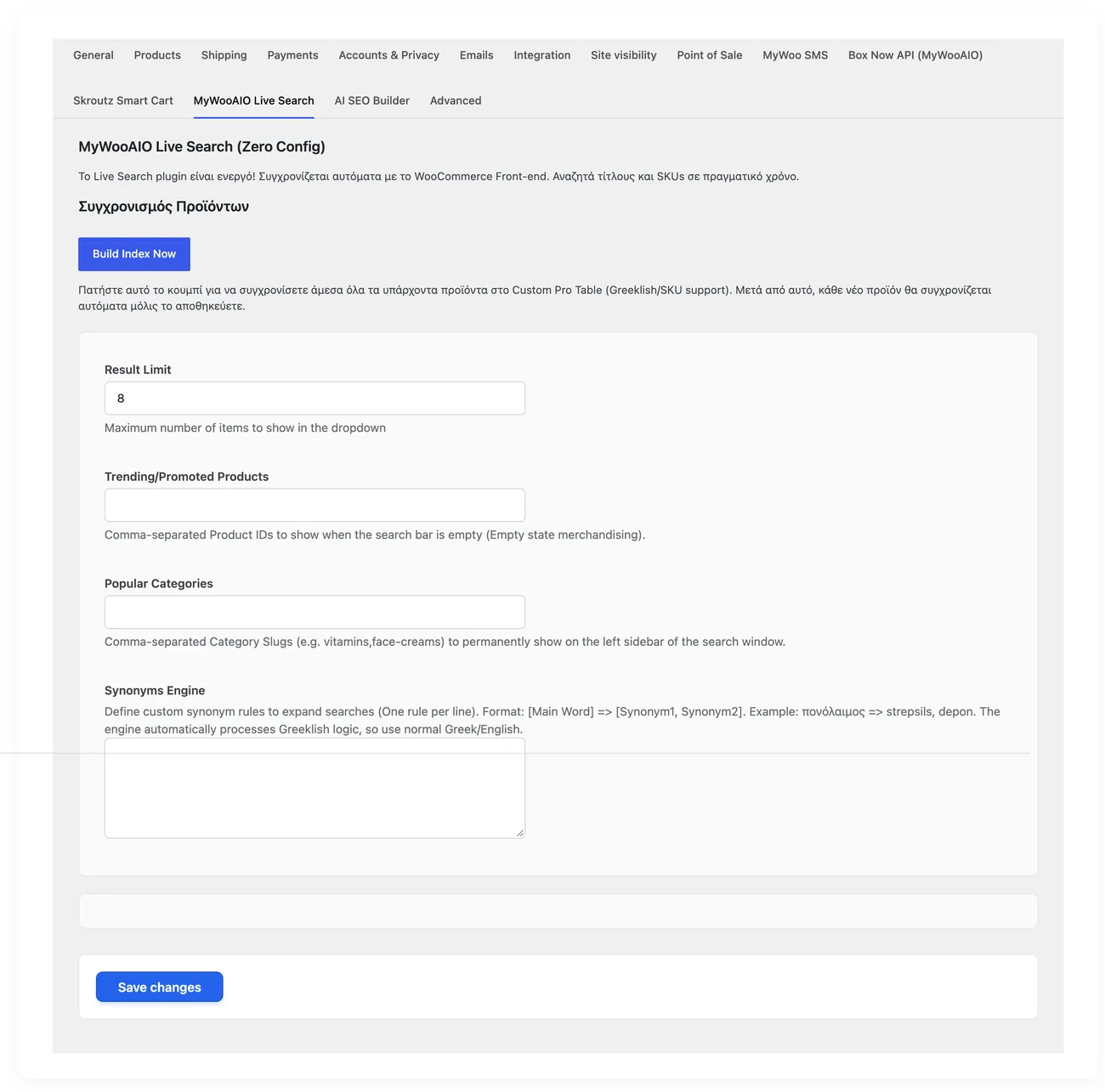
The live search settings

What search shows while the visitor types, with no page reload.

Οι ρυθμίσεις της ζωντανής αναζήτησης
WooCommerce → Settings → MyWooAIO Live SearchOpen full size

Shortcodes

How to place it

Copy the shortcode into any page, post or widget area.

[mywoo_aio_live_search]

Renders the live search box with suggestions as the visitor types, with Greek spelling support and phonetic matching.

Where: Wherever you want the search placed by hand: homepage, header, no-results page.

Parameters: No parameters.

04 — For developers

Every filter and action the plugin fires, with the file and line where it lives.

Filters — 2

  • mywoo_aio_brand_taxonomies
  • mywoo_aio_search_weights

Stored settings

11 settings, kept in your own shop database. You manage them from the settings screens and you never edit them by hand.

Setup guide

A visitor typing in the search box wants to see a result before pressing search, otherwise they leave. The plugin attaches to whatever search field the shop already has, without you changing the layout, and shows results with a photo and a price. It is for shops with a large catalogue that want fewer searches with no result.

  1. 1

    Turn the service on

    Turn on live search and make sure the page saves the setting, because a setting that was not saved shows nowhere and looks like a plugin that does not work. Search for a term that is certainly in the catalogue and see whether a panel with results appears. If nothing appears, check first whether the search field of the theme is the standard one and not a custom build.

  2. 2

    Build the search index

    Search is fast when there is a ready index with titles, SKUs and keywords, so run the build and let it finish. On a large catalogue it takes time, so run it in an hour with little traffic and do not close the browser if the screen asks you not to. Run it again after a bulk product import or after large changes to titles, because the index does not always update on its own.

  3. 3

    Check that it attaches to every search field

    The plugin detects the search fields on the page and attaches to them, so open the home page, a category page and the search page and try the field on each one. Try the field the theme puts in the header too, because many themes have two, one for desktop and one for mobile. If a field is not attached, check whether it is loaded later by a script, because that needs a different setting.

  4. 4

    Test Greek characters and Latin ones

    Type a term in Greek with accents, then the same without accents, then in capitals and finally the same term in Latin characters. The plugin converts Latin characters to Greek, so a customer typing fast still finds the product, but check that the conversion does not bring back unrelated results. Also try a search by product SKU, because many customers search with the code they see on the invoice.

  5. 5

    Look at what shows for each result

    Check whether each result shows a photo, a title and a price, because results without a price lead to products the customer will not buy. Check what happens with out of stock products: if they show up, the customer picks one and is disappointed on the product page, so hide them or push them to the end of the list. Also try a search for a term that does not exist, to make sure the message is clear.

  6. 6

    Check the speed on a large catalogue

    Open the search page and measure how long it takes to show results, trying it over a mobile network as well. If the response is slow, lower the number of results shown per search, because the panel does not need to show twenty products. If the shop has object caching, connect it, because the same searches are repeated many times a day with the same terms.

Common mistakes

  • An index that was never built. Search works but is slow and returns few results.
  • A search field loaded by a script. The panel does not appear and it looks like a fault.
  • Out of stock products in the first results. The customer picks something they cannot buy.
  • Testing only in Latin, or only with one term. Half the customer searches were never tried.

Questions

About Live Search (Zero Config)

Does it work with the Elementor custom search bar?

Yes. Live Search scans the DOM and attaches to any search input in your theme.

Licence

Included in the MyWooAIO suite, along with every other plugin, for a single payment.

  • Instant 1-click install
  • Updates included for life
  • Support in Greek

Installation

  1. Install the MyWooAIO Manager
  2. Paste your licence key
  3. One click: the plugin installs and activates itself
  4. Updates arrive on their own, from the dashboard

Add Live Search (Zero Config) to your shop

One payment, updates included, no subscription.