

All plugins
Growth utilitiesVersion 5.0.1

Master Filters

Complete integration for Master Filters. Easily connect your store with seamless and robust syncing.

  • 5.0.1Version
  • ≥ 6.0WordPress
  • ≥ 7.4PHP
  • 5PHP files

01

What it does

Written for WooCommerce, without third-party ballast: the same behaviour, fewer queries.

Upgrade your WooCommerce experience with our native Master Filters integration. Enjoy high performance with zero database bloat and native HPOS support. Start managing your store efficiently.

Capabilities

  • High Performance Order Storage (HPOS) Ready
  • Action Scheduler Asynchronous Syncing
  • Full API capabilities & Dashboard reporting

02 — What runs in the background

What the source code actually registers, read from the plugin itself.

  • HPOSCompatible with WooCommerce High-Performance Order Storage
  • PermissionsEach action checks the user's capabilities (2 checks)
  • TranslationEvery string is translatable

Real screen

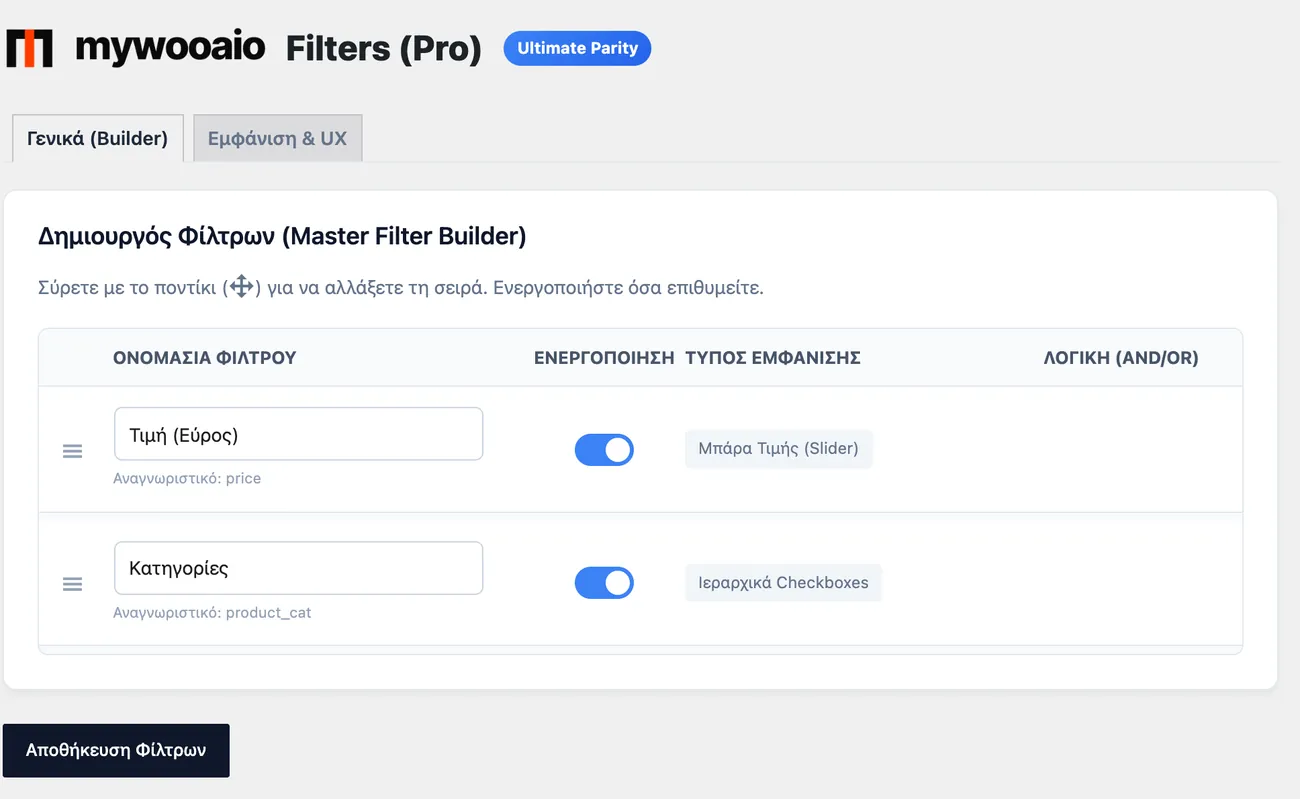
The filter settings

The screen as it opens after activation, in the same menu as the rest of the toolkit.

Η σελίδα ρυθμίσεων των φίλτρων Ajax
MyWooAIO → Filters (Ajax)Open full size

Shortcodes

How to place it

Copy the shortcode into any page, post or widget area.

[mywoo_filters]

Renders the product filters, the same ones the widget shows. Placed on a page by hand it always appears, even with the "above the products" position selected.

Where: On a shop page, on a page you build with Elementor, or in a theme template.

Parameters: class: an extra CSS class on the filters container.

[mywoo_filters_chips]

Renders chips for the filters the visitor has selected, so it is clear what is being filtered and each one can be dropped with a single click.

Where: Above the product list, usually together with the filters shortcode.

Parameters: No parameters.

04 — For developers

Every filter and action the plugin fires, with the file and line where it lives.

Filters — 1

  • widget_title

Stored settings

10 settings, kept in your own shop database. You manage them from the settings screens and you never edit them by hand.

Setup guide

Filters are how a visitor finds a product inside a large catalogue, and heavy filtering plugins are slow to load and break on mobile. The plugin gives you a single filter widget that covers price, categories and attributes, with live updates. It is for shops with many categories and attributes.

  1. 1

    Add the filter widget to the catalogue page

    Open the page or the template where the product list is rendered and add the filter widget, dragging it to the area you want, usually the column next to the list. Check that the widget appears in one column only and that it does not leave an empty space on pages with no products. Open the page in a window with no login, so you are not seeing a different picture just because you are signed in as an admin.

  2. 2

    Choose which attributes show and in what order

    Add the attributes people actually search by, such as size, colour or material, and leave out the ones with values you do not use. Order matters: put the attribute with the fewest options and the most use first, because the visitor does not open a second page of filters. If an attribute has dozens of values, show the most common ones and put the rest behind a show more button.

  3. 3

    Set the display limit and the quick search

    Choose how many values show for each attribute before the visitor taps to see the rest, keeping the limit low so the column does not fill screen after screen. Turn on the search inside the filters and set how many results it shows, because in a shop with many attributes searching the list is faster than scrolling. Check that the search works with Greek characters without accents and with capitals.

  4. 4

    Turn on the mobile drawer

    Turn on the drawer view of the filters for mobile, so the visitor opens the filters with one button and does not lose the product list. Open the catalogue page on a real phone and check that the drawer opens and closes on tap and that the options are fully visible. Pay particular attention to whether the button covers the first product in the list, because that mistake does not show up on desktop.

  5. 5

    Test filter combinations and the page address

    Pick three filters at once, for example category, price and size, and make sure the list shows only what matches all of them and that the product count updates. Copy the page address with the filters on it and open it in another window, because visitors send such addresses around and if they do not open you lose the traffic. Also test the button that clears all filters.

  6. 6

    Check how it behaves with caching

    If the shop uses page caching, make sure pages with filters are not served from old copies, because then the visitor sees results that do not match their choices. Change one filter twice in quick succession and see whether the list keeps up. If the shop runs several languages, check that the attributes are translated and that the filters do not mix products from another language.

Common mistakes

  • Attributes with no values. They show empty and the visitor thinks the shop has no products.
  • Too many values per attribute with no limit. The filter column grows taller than the product list.
  • Filters that work on desktop and vanish on mobile. Most of your traffic loses the feature.
  • Page caching together with filters. The visitor sees the results of a search that is not their own.

Questions

About Master Filters

Do I have to set up separate widgets for price and categories?

No. A single drag-and-drop Master Widget renders price, categories and every attribute dynamically, keeping the layout clean.

Licence

Included in the MyWooAIO suite, along with every other plugin, for a single payment.

  • Instant 1-click install
  • Updates included for life
  • Support in Greek

Installation

  1. Install the MyWooAIO Manager
  2. Paste your licence key
  3. One click: the plugin installs and activates itself
  4. Updates arrive on their own, from the dashboard

Add Master Filters to your shop

One payment, updates included, no subscription.