
Marketing Suite: GTM, Meta CAPI & Offline Conversions
Every sale reaches Google, Meta and TikTok, from the browser and from your server, with hashed customer data and consent respected. One-off 149 €, no subscription.
- 5.0.0Version
- 10PHP files

01
What it does
Written for WooCommerce, without third-party ballast: the same behaviour, fewer queries.
What it sends. Every step the customer takes reaches the platforms you pay for: Google (view_item, add_to_cart, begin_checkout, purchase), Meta (ViewContent, AddToCart, InitiateCheckout, Purchase, CompletePayment), TikTok and SnapChat.
How. Two paths, not one. The browser sends the browsing events, and the server sends the purchase through the GA4 Measurement Protocol, the Meta Conversions API and TikTok Events. The purchase leaves once the order is paid, never while it is pending, and it leaves from the server through Action Scheduler, so it is not lost when a browser or an extension blocks pixels. The same event travels with the same identifier along both paths, so it is never counted twice. Any customer detail that leaves is hashed with SHA-256.
Consent. The plugin reads the visitor's decision from the banner, keeps it on the order, and sends only what is allowed: analytics for Google, ads for Meta and TikTok. If consent is missing or outdated it counts as a refusal and nothing personal leaves. If an identifier is empty, nothing is sent at all.
Where. All on one screen, under WooCommerce, Marketing Suite. From there two product feeds are built, for Meta and Google Merchant Center, once a day with a button to rebuild on demand, including price, sale price, availability and brand. From there you also download the offline conversions export of the last 30 days as CSV, with hashed details, so phone orders count in your campaigns too. The tags, triggers and variables inside Google Tag Manager are created by the plugin itself, through your own account connection.
Capabilities
- Google Analytics 4: view_item, add_to_cart, begin_checkout and purchase, from the browser and from the server via Measurement Protocol
- Meta: Pixel and Conversions API, with ViewContent, AddToCart, InitiateCheckout, Purchase and CompletePayment
- TikTok pixel and SnapChat ID on the same settings screen
- The purchase is sent after the payment succeeds, never while pending
- Server-side sending through Action Scheduler, with no delay at checkout
- The same event identifier in browser and server, so no sale is counted twice
- Customer details hashed with SHA-256 before they leave the store
- Consent per category: analytics for Google, ads for Meta and TikTok, kept on the order
- An empty identifier means nothing is sent at all
- Two product feeds, Meta and Google Merchant, rebuilt daily, with price, sale price, availability and brand
- 30-day offline conversions CSV with hashed details, for orders taken by phone
- Tags, triggers and variables created inside Google Tag Manager by the plugin
- High-Performance Order Storage compatible
02 — What runs in the background
What the source code actually registers, read from the plugin itself.
- HPOSCompatible with WooCommerce High-Performance Order Storage
- Scheduled tasksUses the WordPress cron for recurring work
- Form safetyEvery submitted form is nonce-checked
- PermissionsEach action checks the user's capabilities (3 checks)
- TranslationEvery string is translatable
Real screen
The “Marketing Suite” screen, as it opens
Every field and feed URL sits on one screen. No external account is needed to see what you are about to configure.
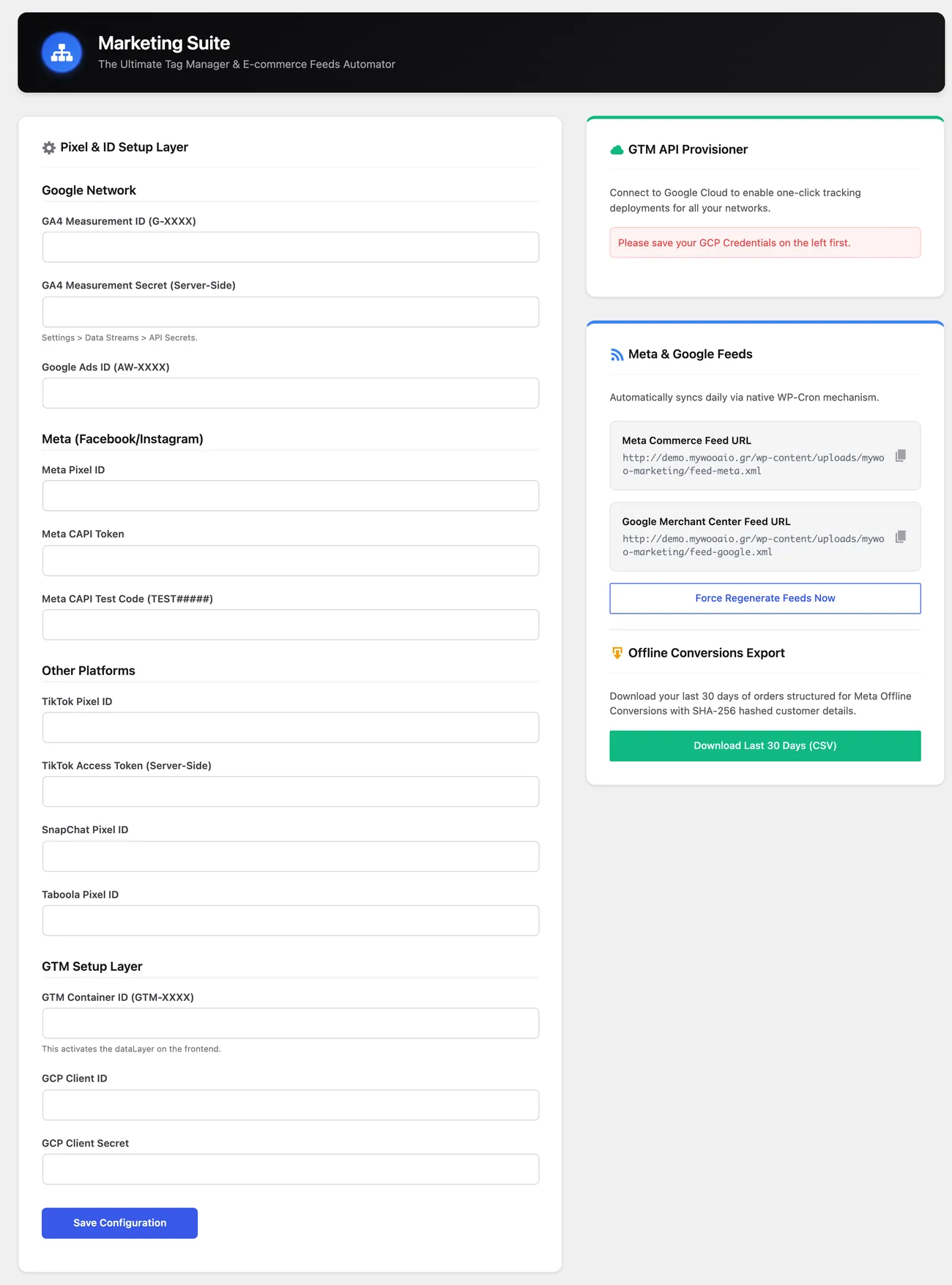
- GA4 Measurement IDFrom Google Analytics, Admin, Data streams. It looks like G-XXXX
- GA4 Measurement SecretFrom the same data streams, under API secrets. Without it the server cannot send the purchase
- MetaPixel ID and CAPI token from Events Manager. The test code field shows the events in Meta's test view, so you can check them before campaigns use them
- Other platformsTikTok Pixel ID with Access Token, SnapChat
- FeedsTwo URLs, one for Meta and one for Google Merchant Center. Built once a day, rebuilt instantly with the button
- Offline conversionsA 30-day CSV to upload to Google or Meta: order number, amount, currency, and customer details hashed with SHA-256
- What is optionalAnything you leave empty sends nothing. The store works normally without any of these fields
Setup guide
Analytics tools miss events because visitors block scripts and privacy settings cut cookies, so campaigns look worse than they really are. The plugin sends the same events from both the browser and the server, with hashed customer details and respect for consent. It is for shops that pay for advertising and want to know what it brought back.
- 1
Collect the IDs from each platform
In the Meta events manager take the tag ID together with the access key for the server, and in the Google data stream take the measurement ID together with the API secret. If the shop uses other platforms as well, collect their details too, but leave the ones you do not use empty, because an empty ID means nothing is sent, and that is what you want.
- 2
Enter the IDs on the settings page
Open the plugin settings page and put the IDs in their fields, with no spaces at the start or the end. Pay particular attention to the Google ID, because a wrong value sends the events to an account that is not yours and no error message appears anywhere. Turn on only the platforms you actually use, not all of them, because every active platform is one more request on each purchase.
- 3
Connect your tag manager account
If the plugin asks you to sign in to your tag manager account, do it from the settings page, so that the variables, triggers and tags are created inside your own container. Then open the tag manager and make sure there is a new version with the changes, because changes that were never published never run. If you would rather not connect, build the tags by hand following the names the plugin gives you.
- 4
Set up consent
The plugin reads the decision the visitor made in the privacy banner, so make sure the banner and the plugin talk about the same categories: analytics for Google, advertising for Meta and TikTok. Check what happens when the visitor does not answer at all, because in that case the behaviour has to be refusal and not silent acceptance. The decision is stored on the order, so that whatever applied at the moment of purchase keeps applying.
- 5
Make a test purchase and watch the events
Pay for an order with your own email, after accepting everything in the banner, then open the real-time reports of each platform. You should see the purchase arrive once, with the right amount and the right currency, and not twice, because double counting makes campaigns look better than they are. Also check that the purchase was not sent while the order was still pending.
- 6
Set up the product feeds and connect the channels
Turn on the two product feeds, one for Meta and one for Google, and make sure they include price, sale price, stock and brand, because a feed without stock gets rejected. Submit the address of each feed in the matching channel and ask for a manual fetch, so you can see how many products went through. Then set up the export of orders that happened off site, so those are counted in the campaigns too.
Common mistakes
- An empty ID. Nothing is sent and the shop believes it is measuring as usual.
- An ID from another account. The events land in an account that is not yours with no error message at all.
- Consent that changes after the order. The plugin keeps the decision taken at the moment of purchase, so older events are not resent under a new permission.
- A product feed without a price or without stock. The listings are rejected and the channels show fewer products than the shop actually has.
More plugins in this category
Questions
About Marketing Suite: GTM, Meta CAPI & Offline Conversions
Do I have to set up the tags inside Google Tag Manager myself?
No. Once it is connected to your account, the add-on creates the variables, triggers and tags inside the container and publishes a version. All you provide are the identifiers.
Will the same sale be counted twice?
No. Browser and server send the same event with the same identifier, so the platforms treat it as one event, not two.
Does it count orders that were never paid?
No. Sending starts after the order has been paid successfully, not while it is pending.
What happens if a visitor declines cookies?
Nothing personal leaves the store. Their decision is kept on the order, so the server honours whatever was in force at the moment of purchase, even if you change the settings later.
How are orders taken over the phone or in store counted?
You download the CSV for the last 30 days, with customer details encrypted, and upload it to Google or Meta as offline conversions. That way sales that did not happen on the site still count against your campaigns.
What do I need to provide to get it running?
Two identifiers and their keys. For Meta the Pixel ID with the CAPI token from Events Manager, for Google the Measurement ID with the API secret from Data Streams. Nothing is sent until they are filled in.
Licence
Included in the MyWooAIO suite, along with every other plugin, for a single payment.
- Instant 1-click install
- Updates included for life
- Support in Greek
Installation
- Install the MyWooAIO Manager
- Paste your licence key
- One click: the plugin installs and activates itself
- Updates arrive on their own, from the dashboard
Add Marketing Suite: GTM, Meta CAPI & Offline Conversions to your shop
One payment, updates included, no subscription.